Platform Administration
Platform administrators have elevated access across all organizations for support, debugging, and system management. This guide explains platform admin capabilities and responsibilities.
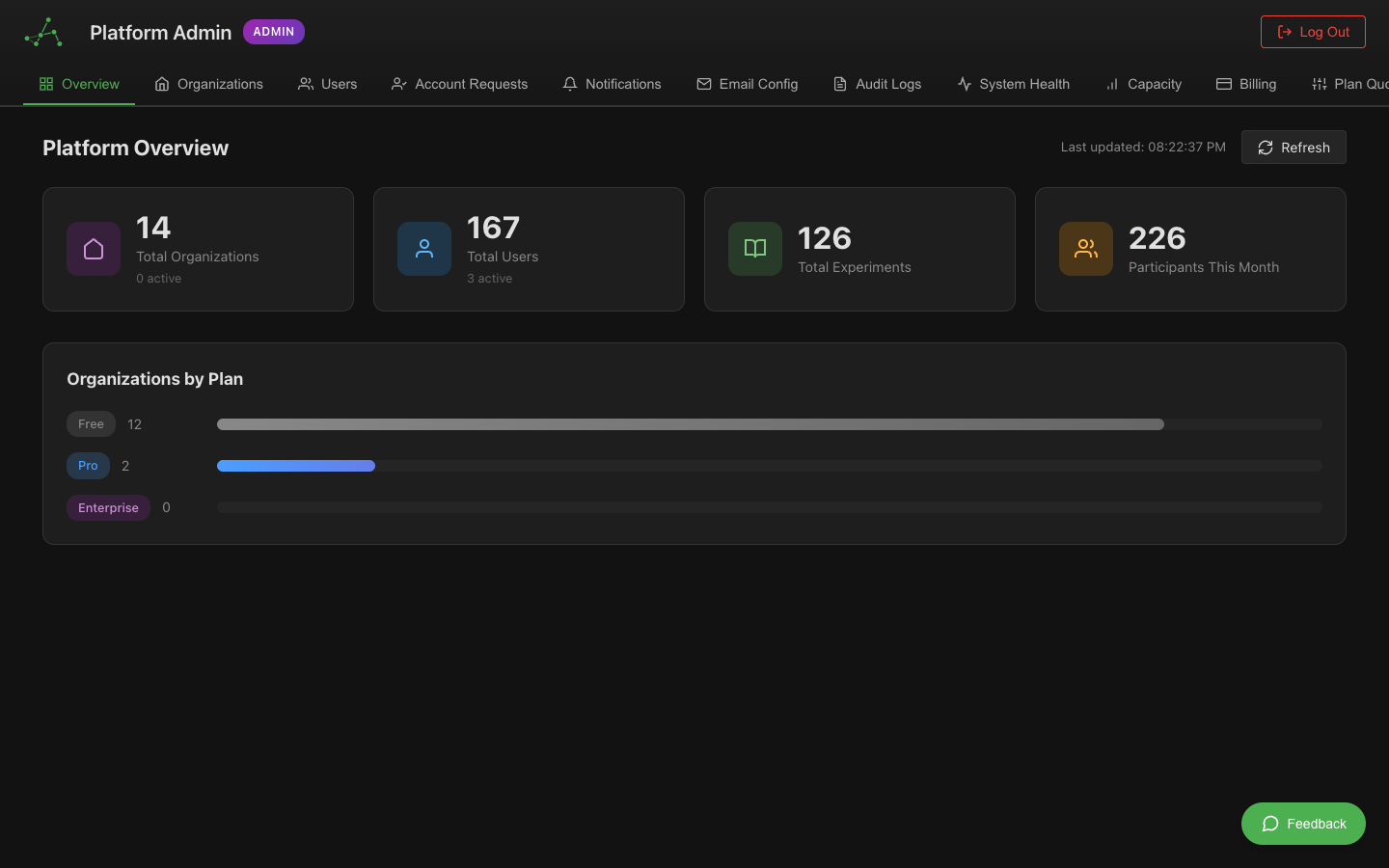
Platform Admin vs Organization Admin
HyperStudy has two levels of administrative access:
| Aspect | Organization Admin | Platform Admin |
|---|---|---|
| Scope | Single organization | All organizations |
| User management | Org members only | All users |
| Resource access | Org resources only | All resources (logged) |
| Settings | Org settings | Platform settings |
| Audit logs | Org audit logs | Platform-wide logs |
| Typical role | Lab manager, PI | HyperStudy staff, IT admin |
Platform Admin Capabilities
Cross-Organization Resource Access
Platform admins can access resources from any organization for support and debugging:
- Experiments: View and troubleshoot experiment configurations
- Data: Access experiment data to diagnose issues
- Media: Review media files when investigating problems
- Users: View user accounts and organization memberships
Every resource access by a platform admin is recorded in the audit trail. This ensures transparency and accountability for elevated access.
User Support Functions
Platform admins can assist users with:
- Account recovery - Reset passwords, unlock accounts
- Organization transfers - Move users between organizations
- Permission troubleshooting - Diagnose access issues
- Data recovery - Retrieve accidentally deleted data
- Quota adjustments - Modify organization quotas
System Management
Platform admins have access to:
- Platform health monitoring
- Feature flag management
- System-wide announcements
- Rate limit adjustments
- Maintenance mode controls
Access Logging and Compliance
What Gets Logged
All platform admin actions are recorded:
// Example audit log entry
{
  action: "platform_admin_access",
  actorId: "admin_user_123",
  actorEmail: "admin@hyperstudy.io",
  resourceType: "experiment",
  resourceId: "exp_abc123",
  resourceOrganization: "org_xyz789",
  accessType: "view",
  reason: "support_ticket_#12345",  // Optional ticket reference
  ipAddress: "10.0.0.1",
  userAgent: "Mozilla/5.0...",
  timestamp: "2024-10-20T14:30:00.000Z"
}
Viewing Admin Access Logs
Organization admins can see when platform admins accessed their resources:
- Go to Settings > Organization > Audit Log
- Filter by Action Type: Platform Admin Access
- Review the access events and reasons
Compliance Reports
For audits and compliance requirements, platform admins can generate:
- Access reports: All platform admin access within a date range
- Organization reports: All activity for a specific organization
- User reports: All activity by a specific admin
Best Practices for Platform Admins
When to Use Platform Admin Access
Appropriate uses:
- Responding to support tickets
- Investigating reported bugs
- Assisting with data recovery
- Troubleshooting permission issues
- Emergency incident response
Inappropriate uses:
- Casual browsing of user data
- Accessing data without a documented reason
- Bypassing user consent
- Personal curiosity
Documentation Requirements
When accessing user resources, platform admins should:
- Document the reason - Reference support ticket or incident
- Limit scope - Access only what's needed to resolve the issue
- Notify if appropriate - Inform the organization of the access
- Log the resolution - Document what was done and the outcome
Security Responsibilities
Platform admins must:
- Use strong, unique passwords
- Enable two-factor authentication
- Never share credentials
- Report suspicious access attempts
- Follow the principle of least privilege
Managing Platform Admins
Granting Platform Admin Access
Platform admin access is granted by existing platform admins or through infrastructure configuration:
- User must have verified HyperStudy account
- Background check / trust verification
- Training on platform admin responsibilities
- Access granted via Firebase custom claims
Revoking Platform Admin Access
To revoke platform admin access:
- Remove the
platformAdmincustom claim - Invalidate active sessions
- Review recent access logs for anomalies
- Update access documentation
Auditing Platform Admin Actions
Regularly review platform admin activity:
- Weekly: Review all platform admin access events
- Monthly: Audit admin accounts for necessity
- Quarterly: Full access review and policy compliance check
Emergency Procedures
Incident Response
When responding to security incidents:
- Assess: Determine scope and impact
- Contain: Limit further damage
- Document: Record all actions taken
- Notify: Inform affected organizations
- Remediate: Fix the underlying issue
- Review: Post-incident analysis
Data Recovery
For data recovery requests:
- Verify the request is legitimate
- Check backup availability
- Document the recovery scope
- Perform recovery in isolated environment first
- Verify recovered data integrity
- Apply recovery to production
- Confirm with requesting user
Maintenance Mode
When entering maintenance mode:
- Schedule maintenance window
- Notify all organization admins
- Display maintenance banner to users
- Enable maintenance mode
- Perform maintenance
- Disable maintenance mode
- Verify system health
- Send completion notification
Related Documentation
- User Management - Managing user accounts
- Monitoring - System monitoring and alerts
- Multi-Tenant Architecture - Technical details on data isolation