Getting Started as a Participant
Welcome to the HyperStudy platform! This guide will help you prepare for participating in research experiments on our platform.
What is HyperStudy?
HyperStudy is a platform to aid researchers in collecting data from experiments. As a participant, you will:
- Respond to questions or rating tasks
- Interact with other participants as directed by the experiment
- Watch synchronized videos or view images
- Join video conversations with other participants
Requirements Before You Begin
To ensure a smooth experience, you'll need:
-
A modern web browser - We recommend:
- Chrome (preferred)
- Firefox (latest version)
- Edge (Chromium-based version)
-
Webcam and microphone - Most experiments require video and audio interaction
-
Stable internet connection - A minimum of 2 Mbps upload/download speed is recommended
-
A quiet, well-lit environment - This helps ensure quality video and audio
Creating Your Account
There are two ways to create your participant account:
Direct Registration
- Visit hyperstudy.io/auth/participant
- Click "Create Account" if you don't have one
- Fill out the registration form with:
- Name (or pseudonym as directed by the researcher)
- Email address
- Password (must be secure)
- Complete email verification when prompted
- Log in with your new credentials
Via Research Link
- Use the participation link provided by your researcher
- You'll be directed to the appropriate registration page
- Follow the registration process above
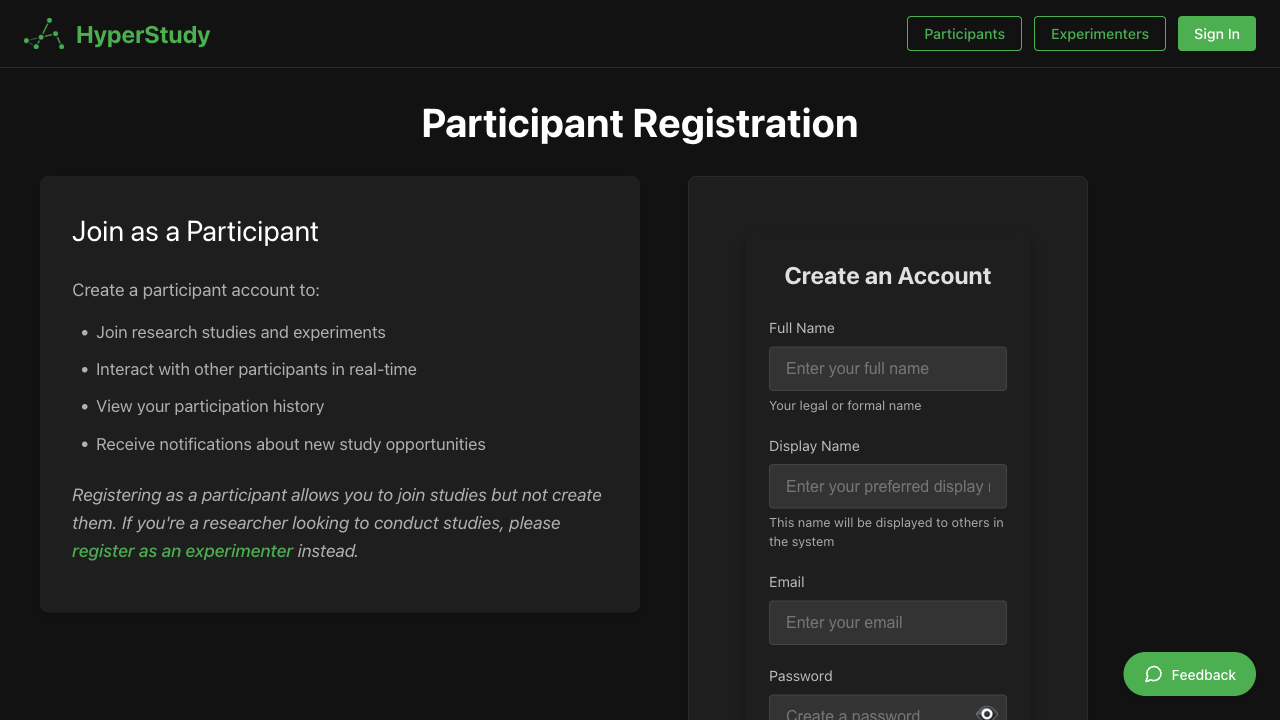 Participant registration and login screen
The Participant Dashboard
After logging in, you'll see your participant dashboard:
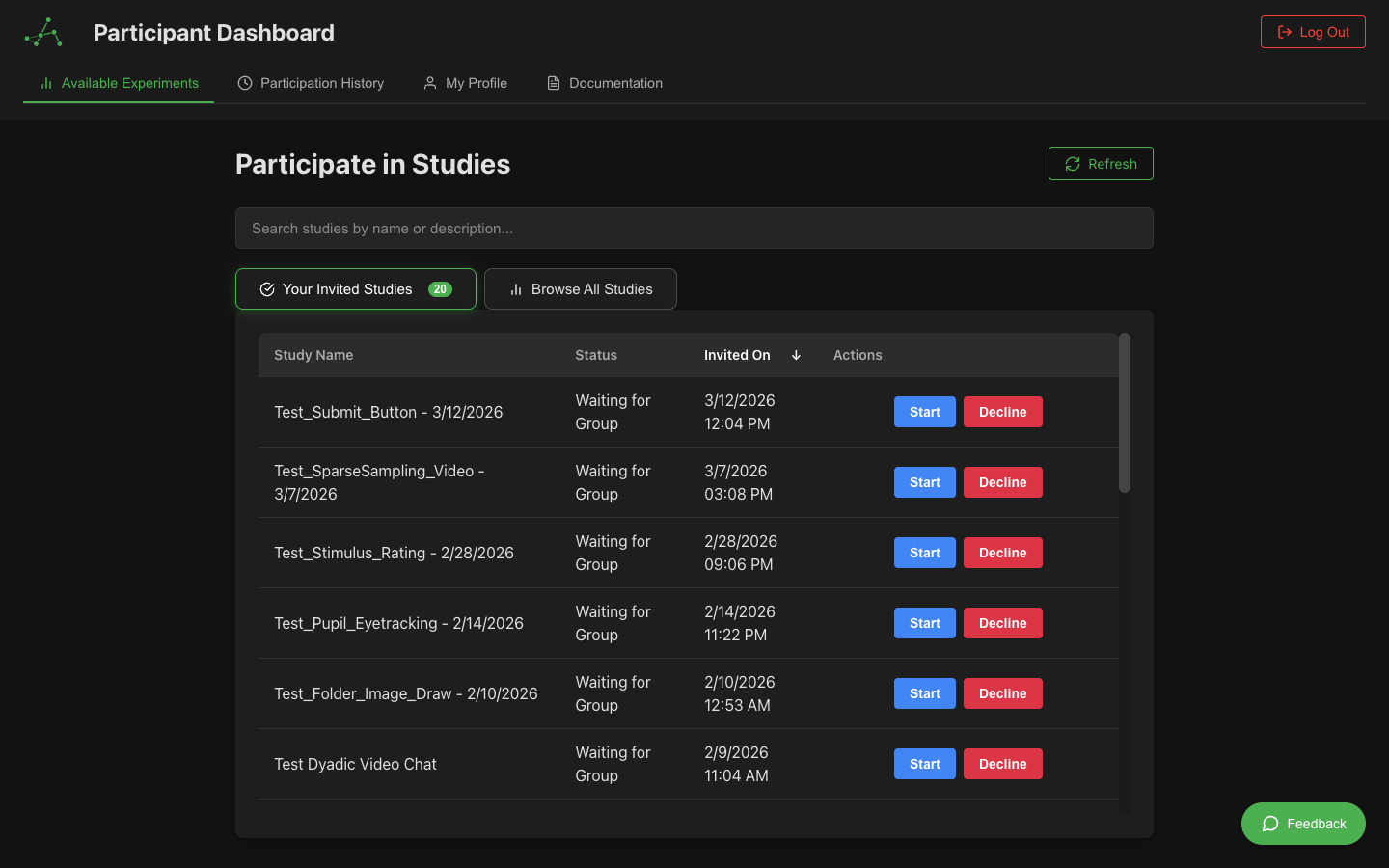
The dashboard shows:
- Available Experiments: Experiments you've been invited to
- Past Participations: Records of your previous experiment sessions
- Profile Settings: Where you can update your information and profile picture
Setting Up Your Profile Picture
Adding a profile picture enhances your presence in video chat experiments:
How to Add a Profile Picture
-
Access Your Profile
- Click on your profile icon in the top right corner
- Select "Profile Settings" from the dropdown menu
- Or navigate to the Profile section from your dashboard
-
Upload Your Picture
- Click "Upload Profile Picture" or "Change Picture"
- Select an image from your computer
- Supported formats: JPG, PNG, GIF
- Recommended size: At least 200x200 pixels
- Maximum file size: 5MB
-
Adjust Your Picture
- Crop the image if needed
- Ensure your face is clearly visible
- Click "Save" to confirm your selection
Profile Picture Guidelines
For the best experience in video chat experiments:
- Use a clear photo of your face
- Good lighting helps others see you clearly
- Neutral background is preferred
- Recent photo that represents how you look now
- Appropriate content - professional or casual is fine
Where Your Picture Appears
Your profile picture is displayed:
- In the video chat interface when your camera is off
- In the waiting room participant list
- In your profile settings
- To researchers viewing participant information
Privacy Considerations
- Your profile picture is only visible during active experiments
- Researchers and other participants in your session can see it
- You can change or remove your picture at any time
- The picture is not shared outside the platform
Joining an Experiment
There are two ways to join an experiment:
1. Using a Direct Link
- Click the participation link provided by the researcher
- Log in if prompted
- You'll be taken directly to the waiting room for the experiment
2. From Your Dashboard
- Log in to your dashboard
- Find the experiment under "Available Experiments"
- Click "Join" to enter the waiting room
The Waiting Room
After starting an experiment, you'll enter the waiting room:
While in the waiting room:
- You may see instructions about the experiment
- You can verify your devices are working properly
- You'll be automatically moved to the experiment when all participants are ready
- A countdown may appear before the experiment begins
Device Testing
Before joining an experiment, you may be prompted to test your devices:
- Camera Test: You'll see a preview of your webcam feed
- Microphone Test: Speak to see the audio levels respond
- Speaker Test: Click "Test" to hear a sound
- Connection Test: The system will check your network quality
If any tests fail, you'll see troubleshooting suggestions.
Understanding Instructions
Before the experiment begins, you'll be presented with instructions about what you'll be doing. It's important to read these carefully as they contain critical information for completing the experiment successfully.
Reading Instructions
Instructions may be presented across multiple pages:
- Click "Next" to advance through instruction pages
- Use "Previous" to review earlier pages
- Take your time to understand each section
- Pay attention to highlighted or bold text
Comprehension Checks
Some experiments include comprehension checks to verify you understand the instructions. These are short quizzes that ask questions about the key information.
What to Expect
- After reading an instruction page, you may see a "Check Your Understanding" button
- Click the button to start the quiz
- Answer all questions - you must complete every question before submitting
- Submit your answers to see your score
Question Types You May Encounter
- Multiple Choice: Select the correct answer from several options
- True/False: Determine if a statement is true or false
- Short Text: Type a brief answer in your own words
- Numeric: Enter a number as your answer
Passing the Check
- You'll see your score immediately after submitting
- If you pass (usually 70-80% or higher), you can continue
- A green checkmark will indicate success
- You can proceed to the next instruction page or the waiting room
If You Don't Pass
Don't worry! Comprehension checks are designed to help you learn:
- Your score will be shown with incorrect answers highlighted
- Explanations will help you understand the correct answers
- You can try again (usually 2-3 attempts are allowed)
- Review the instructions carefully before retrying
- Questions may be presented in a different order on retry
Tips for Success
- Read carefully: Don't rush through the instructions
- Take notes: Write down important details if helpful
- Focus on key information: Pay attention to time limits, task requirements, and response methods
- Ask questions: If something is unclear before the quiz, contact the researcher if possible
Maximum Attempts
If a comprehension check is required and you reach the maximum number of attempts:
- You won't be able to continue with the experiment
- The researcher will be notified
- You may receive further instructions via email
- This ensures data quality by confirming participants understand the tasks
Why Comprehension Checks?
Comprehension checks benefit both you and the researcher:
- For You: Ensures you understand what to do, reducing stress and confusion
- For Research: Improves data quality by confirming participants are properly informed
- For Science: Helps validate that results reflect understanding of the task
During the Experiment
Once the experiment begins:
- Follow the on-screen instructions carefully
- Complete any tasks as directed
- Use the video chat to communicate with other participants (if enabled)
- Answer questions or provide ratings when prompted
- Remember the key points from the instructions
- Don't hesitate to refer back to instructions if allowed
Common Issues and Solutions
| Issue | Solution |
|---|---|
| Camera not detected | Ensure no other applications are using your camera; refresh the page |
| Microphone not working | Check browser permissions; select the correct input device |
| Can't hear others | Verify your speaker selection; check system volume |
| Connection unstable | Move closer to your WiFi router; close other applications using internet |
| Page won't load | Clear browser cache; try a different browser |
Getting Help
If you encounter technical difficulties:
- Use the "Help" button within the experiment if available
- Contact the researcher using the provided contact information
- Check your email for alternative instructions from the research team
Next Steps
Now that you understand the basics, learn more about: