User Management
As an administrator, you have full control over user accounts, permissions, and roles. This guide covers all aspects of user management in the HyperStudy platform.
User Roles Overview
The platform has three primary user roles, each with different permissions:
-
Administrators
- Full system access
- Manage all users, experiments, and content
- Configure system settings
- Access to all rooms and recordings
-
Experimenters
- Create and manage their own experiments
- Upload media for their experiments
- Manage participant assignments
- Access only to their experiments and shared experiments
-
Participants
- Join assigned experiments
- Access only their participation history
- Limited system functionality
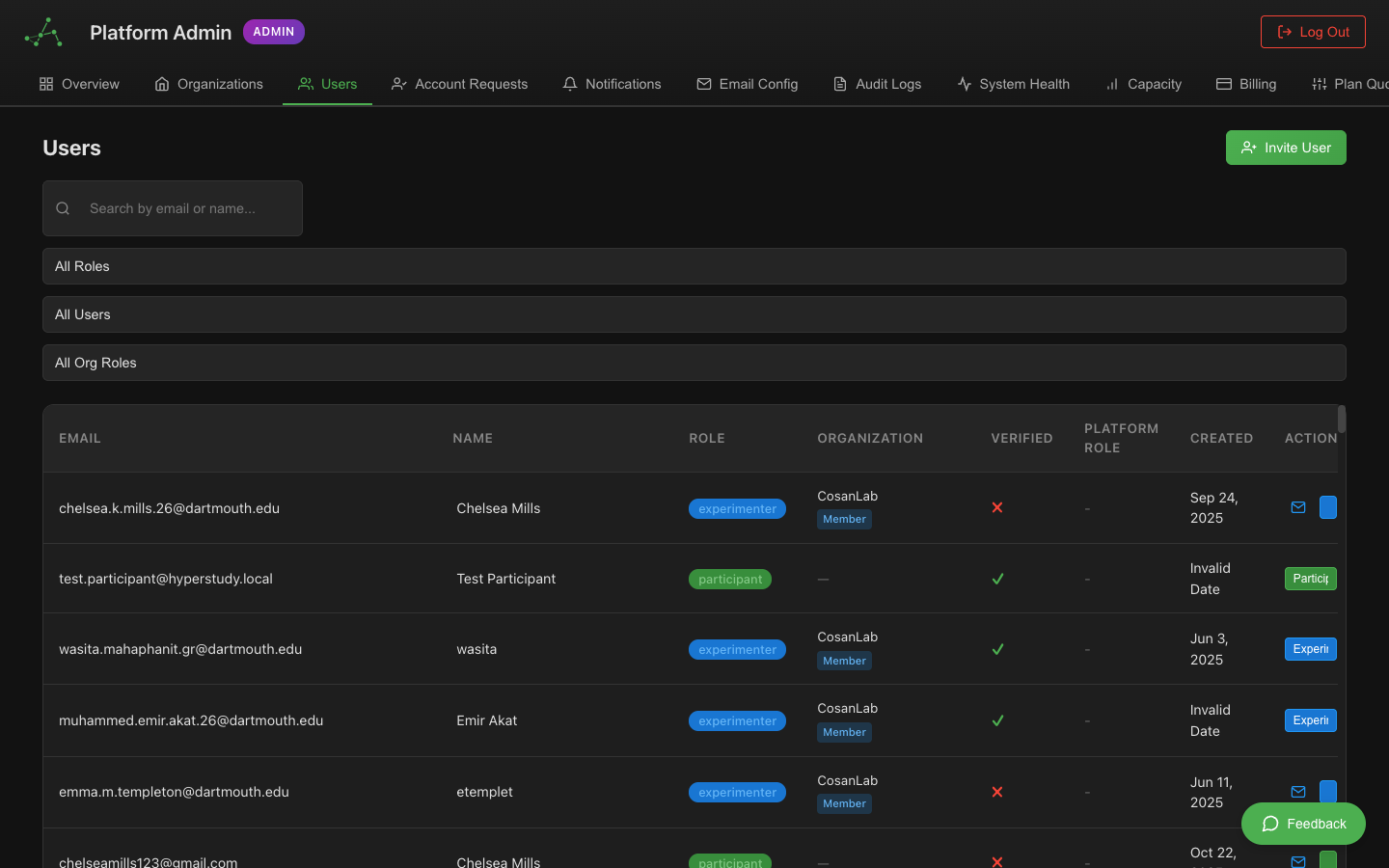
The User Management Interface
Access the user management interface from the Admin Dashboard by clicking the "Users" tab.
The interface includes:
- User List: Searchable, sortable table of all users
- User Details: Detailed information about selected users
- Role Management: Tools to assign and modify user roles
- Bulk Actions: Operations on multiple users at once
Managing Users
Creating New Users
While users can self-register, administrators can also create accounts directly:
- Click the "Add User" button
- Enter the user's email address and name
- Select the appropriate role
- Choose whether to send an email invitation
- Click "Create User"
When creating experimenter accounts, consider adding them to appropriate experimenter groups to grant access to shared resources.
Viewing User Information
To view detailed information about a user:
- Find the user in the table (use search if needed)
- Click on the user's name to view their details
- The user details panel shows:
- Account information
- Role and permissions
- Participation history
- Experimenter activity (if applicable)
Editing User Information
To modify a user's information:
- Open the user details panel
- Click the "Edit" button
- Update the necessary fields
- Click "Save Changes"
You can edit:
- Display name
- Email address
- Role
- Experimenter group membership
- Account status
Changing User Roles
To change a user's role:
- Open the user details panel
- Click the "Change Role" button
- Select the new role from the dropdown
- Click "Update Role"
Changing a role from Experimenter to Participant will remove access to any experiments they've created. Consider transferring ownership of these experiments first.
Deactivating Users
To temporarily deactivate a user:
- Open the user details panel
- Toggle the "Active" switch to off
- Confirm the deactivation
Deactivated users:
- Cannot log in to the system
- Remain in the database with all their data
- Can be reactivated at any time
Deleting Users
To permanently delete a user:
- Open the user details panel
- Click the "Delete User" button
- Confirm the deletion
Deleting a user is permanent and cannot be undone. All user data, including participation records, will be permanently removed.
Experimenter Management
Approving Experimenter Requests
When users register and request experimenter privileges:
- You'll receive a notification in the Admin Dashboard
- Navigate to the "Pending Approvals" section
- Review the user's information and request reason
- Click "Approve" or "Deny"
- Optionally, add the user to one or more experimenter groups
Managing Experimenter Groups
Experimenter groups allow for shared experiment access and collaboration:
-
Go to the "Experimenter Groups" section
-
To create a new group:
- Click "New Group"
- Enter a name and description
- Add members from the experimenter list
- Click "Create Group"
-
To edit a group:
- Select the group from the list
- Modify members or group details
- Click "Save Changes"
Participant Management
Bulk Participant Import
To import multiple participants at once:
- Click "Import Participants"
- Download the CSV template
- Fill in participant information
- Upload the completed CSV
- Review the import preview
- Click "Confirm Import"
Assigning Participants to Experiments
To assign participants to specific experiments:
- Navigate to the experiment in the Experiments tab
- Click "Participant Assignment"
- Use the participant selector to add participants
- Assign roles if applicable
- Click "Save Assignments"
Advanced User Management
User Activity Monitoring
To monitor user activity on the platform:
- Go to the "Activity Logs" section
- Use filters to focus on specific users, roles, or actions
- View detailed logs of user actions
- Export logs if needed for compliance or analysis
User Email Management
To communicate with users:
- Go to the "Email" section
- Select recipients by:
- Individual users
- Roles
- Experiment participation
- Compose your message
- Schedule or send immediately
Permission Overrides
For special cases, you can override default role permissions:
- Open the user details panel
- Click "Custom Permissions"
- Toggle specific permissions on or off
- Click "Save Custom Permissions"
Custom permissions should be used sparingly. Relying on standard roles ensures consistency across the platform.
Best Practices
For effective user management:
- Regular Audits: Review user accounts and roles quarterly
- Group Organization: Create logical experimenter groups based on departments or research areas
- Minimal Privileges: Assign the least privileged role needed for each user
- Documentation: Keep records of role changes and permission modifications
- Training: Ensure new experimenters receive proper training before approval
Troubleshooting
| Issue | Solution |
|---|---|
| User can't log in | Check account status is active; verify email is confirmed |
| Experimenter can't access shared experiment | Check experimenter group membership and experiment permissions |
| Admin notifications not received | Verify admin email settings in system configuration |
| User role change not taking effect | Clear browser cache or ask user to log out and back in |
| User appearing in wrong groups | Check for duplicate accounts with similar emails |