Member Management
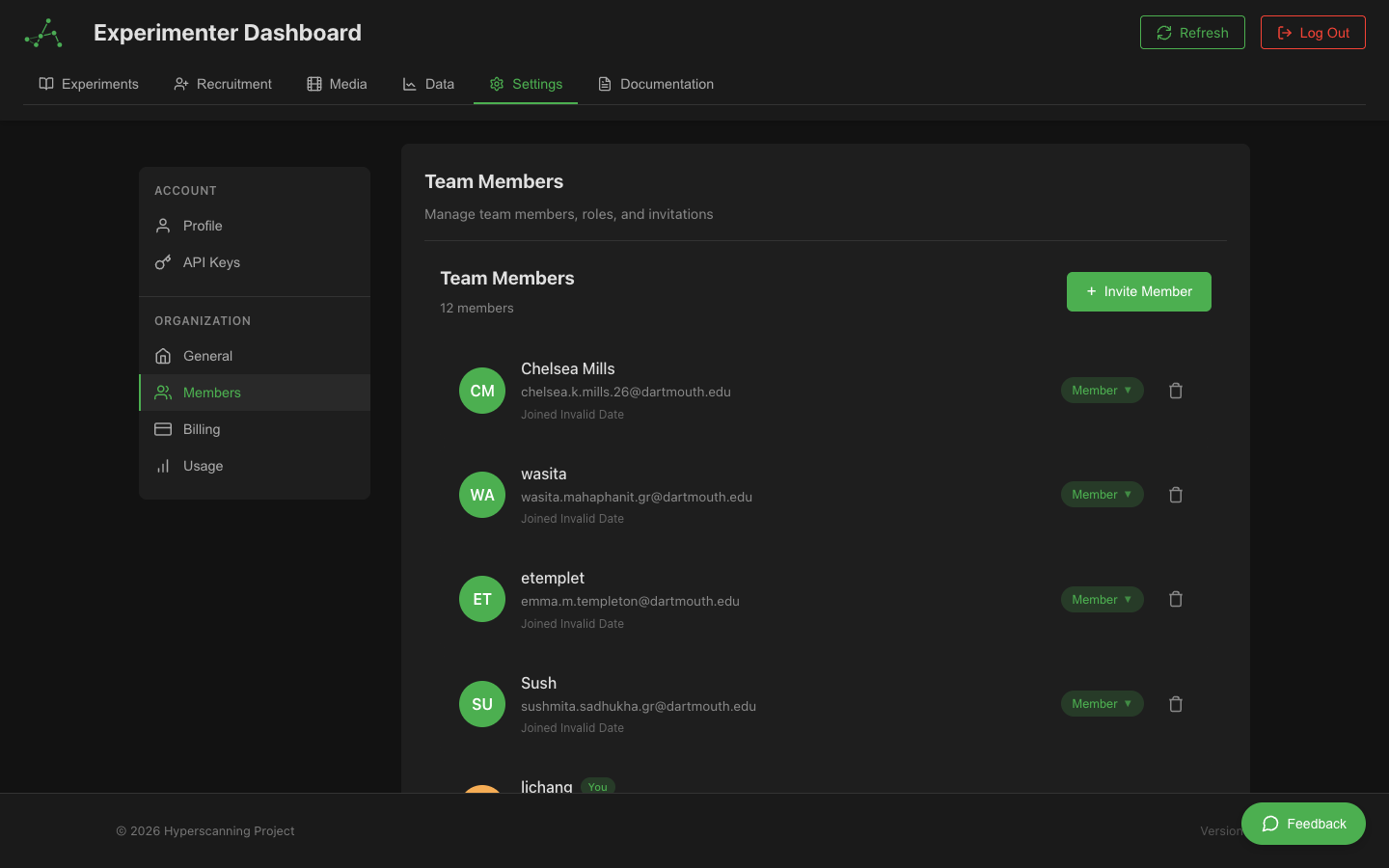
Organization admins and owners can invite team members, assign roles, and manage access to experiments and data.
Organization Roles
HyperStudy uses four roles to control access within organizations:
| Role | Experiments | Members | Settings | Billing |
|---|---|---|---|---|
| Owner | Full access | Full control | Full access | Full access |
| Admin | Full access | Can invite & remove | Can edit | View only |
| Member | Own experiments only | View only | View only | No access |
| Guest | Shared only | No access | No access | No access |
Role Details
Owner
- Full control over the organization
- Can transfer ownership to another member
- Can delete the organization
- Manages billing and subscriptions
- Only one owner per organization
Admin
- Can invite new members and remove existing ones
- Can change member roles (except owner)
- Can edit organization settings
- Has full access to all experiments in the organization
Member
- Can create and manage their own experiments
- Can view organization information
- Can access experiments shared with them
- Cannot manage other members or settings
Guest
- Can only access experiments explicitly shared with them
- Cannot create new experiments
- Useful for external collaborators or reviewers
Inviting Members
To invite a new member to your organization:
- Go to Settings > Organizations
- Select your organization
- Click the Members tab
- Click Invite Member
- Enter the user's email address
- Select a role for the new member
- Click Send Invitation
The invited user will receive an email with instructions to join your organization.
Invited users must have a HyperStudy account. If they don't have one, they'll be prompted to create one when accepting the invitation.
Managing Existing Members
Viewing Members
The Members tab shows all current members with:
- Name and email
- Role
- Join date
- Last active date
Changing Roles
To change a member's role:
- Find the member in the Members list
- Click the role dropdown next to their name
- Select the new role
- Confirm the change
Demoting an admin to member will remove their ability to manage organization settings and other members.
Removing Members
To remove a member from the organization:
- Find the member in the Members list
- Click the Remove button (trash icon)
- Confirm the removal
When a member is removed:
- They lose access to all organization experiments
- Their personal experiments remain with them
- They can be re-invited later if needed
Transferring Ownership
Organization ownership can be transferred to another member:
- Go to Settings > Organizations > Members
- Find the member you want to transfer ownership to
- Click the More Options menu (three dots)
- Select Transfer Ownership
- Confirm the transfer
After transfer:
- The previous owner becomes an Admin
- The new owner has full control
- Billing responsibility transfers to the new owner
Ownership transfer is a significant action. Make sure you trust the new owner completely, as they will have full control over the organization including the ability to remove you.
Member Limits
The number of members you can have depends on your plan:
| Plan | Member Limit |
|---|---|
| Free | 1 (owner only) |
| Pro | 5 members |
| Enterprise | Unlimited |
If you need more members, consider upgrading your plan.
Best Practices
Role Assignment
- Give members the minimum access they need
- Reserve Admin roles for trusted team leads
- Use Guest access for temporary collaborators
Regular Audits
- Review member list periodically
- Remove members who no longer need access
- Verify role assignments are still appropriate
Onboarding
- Share organization guidelines with new members
- Point them to relevant experiment documentation
- Set expectations for experiment naming and organization