States and Flow Control
States are the fundamental building blocks of your experiment in HyperStudy. Each state represents a distinct phase or screen that participants experience. This guide provides comprehensive examples and patterns for building effective experiment flows.

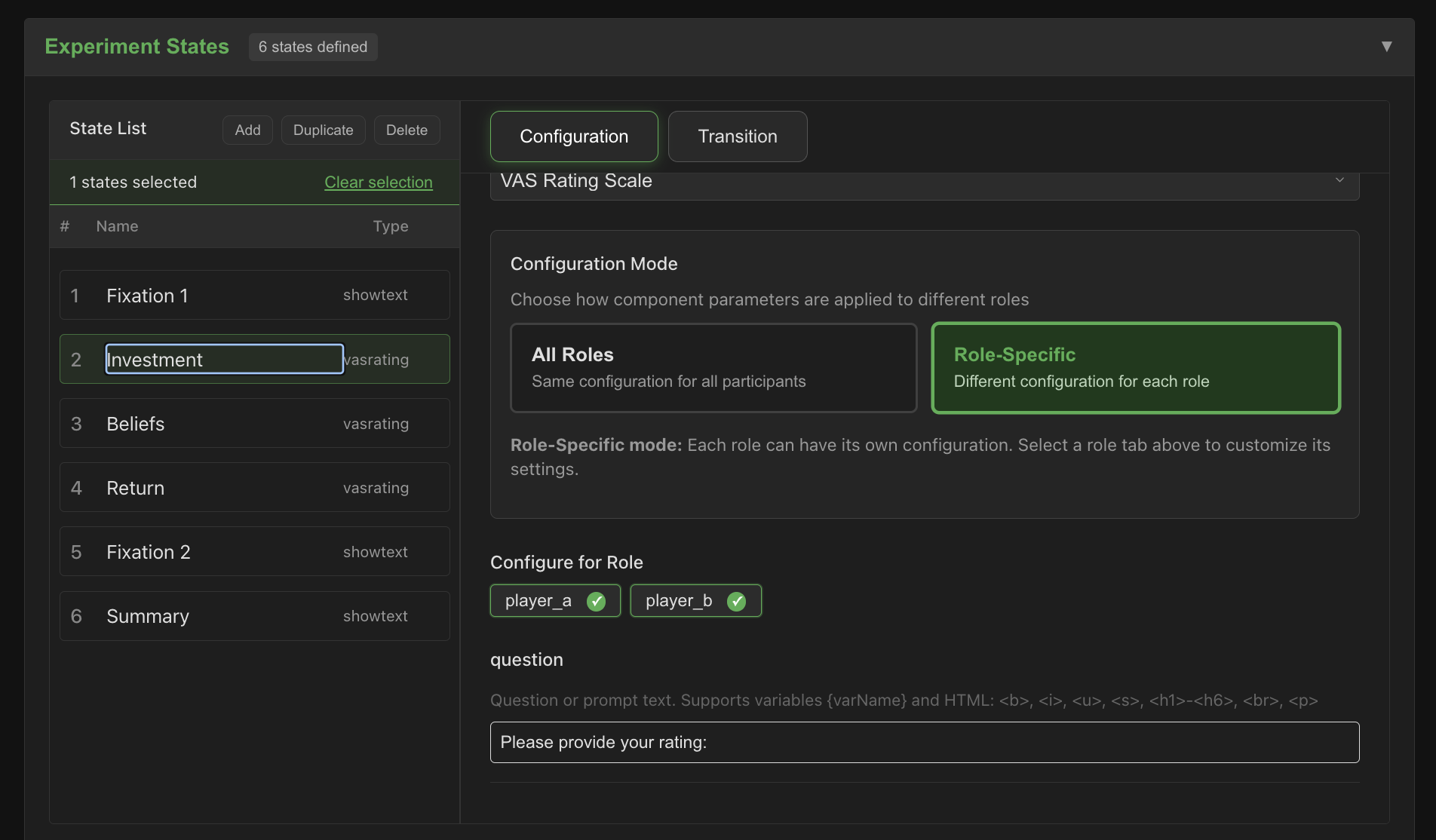
Understanding States
What is a State?
A state is a single "screen" or phase in your experiment that:
- Contains one primary component (the focus component)
- Can display global components (persistent UI elements)
- Has rules for when and how to transition to the next state
- Manages timing and participant interactions
Think of states like slides in a presentation - participants move through them in a controlled sequence.
Experiment States vs. Pre-Experiment Stages
Before participants reach your experiment states, they go through automatic pre-experiment stages (authentication, consent, instructions, waiting room, device setup). These are configured via separate tabs in the designer, not through the States panel. For the complete participant journey including all stages, see the Participant Flow Guide.
State Anatomy
Every state consists of:
┌─────────────────────────────────┐
│         State Name              │
├─────────────────────────────────┤
│                                 │
│      Focus Component            │
│   (e.g., Instructions,          │
│    Video, Rating Scale)         │
│                                 │
├─────────────────────────────────┤
│   Global Components (optional)  │
│   • Timer                       │
│   • Progress Bar                │
│   • Video Chat                  │
└─────────────────────────────────┘
Creating States
Basic State Creation
-
Open the Experiment Designer
- Navigate to your experiment
- Click "Edit" to open the designer
-
Add a New State
- Click the "Add State" button in the States panel
- Enter a descriptive name (e.g., "Welcome", "Task_1", "Demographics")
- The state appears in your states list
-
Configure the State
- Select the state to view its properties
- Choose a focus component from the dropdown
- Configure component-specific settings
- Set transition rules
State Properties
| Property | Description | Example |
|---|---|---|
| Name | Unique identifier for the state | "Consent_Form" |
| Order | Position in the sequence | 1, 2, 3... |
| Focus Component | Main interactive element | Text, Video, Rating Scale |
| Duration | Time limits or requirements | 30 seconds, No limit |
| Next State | Where to go next | "Instructions" |
| Visibility Rules | When to show/hide | Always, Role-specific |
State Flow Patterns
Linear Flow
The most common pattern - participants move through states in a fixed sequence.
Example: Simple Survey
Welcome → Instructions → Question_1 → Question_2 → Question_3 → Thank_You
Configuration:
{
  "states": [
    {
      "name": "Welcome",
      "component": "Text",
      "nextState": "Instructions",
      "content": "Welcome to our study on decision-making..."
    },
    {
      "name": "Instructions",
      "component": "Text",
      "nextState": "Question_1",
      "content": "You will be asked to rate several scenarios..."
    },
    {
      "name": "Question_1",
      "component": "MultipleChoice",
      "nextState": "Question_2",
      "question": "How often do you make impulsive decisions?"
    }
    // ... more states
  ]
}
Grouped States
Organize related states into logical groups for better management.
Example: Multi-Phase Experiment
Phase 1: Introduction
├── Welcome
├── Consent
└── Instructions

Phase 2: Training
├── Tutorial_Video
├── Practice_Task_1
├── Practice_Task_2
└── Practice_Feedback

Phase 3: Main Task
├── Task_Instructions
├── Task_Block_1
├── Break
├── Task_Block_2
└── Task_Complete

Phase 4: Conclusion
├── Demographics
├── Debrief
└── Thank_You
State Transitions
States in HyperStudy progress sequentially in the order you define them. Participants move from State 1 → State 2 → State 3, and so on. There is no branching or conditional logic - the flow is always linear.
Transition Types
You can control when each state advances to the next using two transition types:
1. Timer-Based Transitions (TIMED)
State automatically advances after a specified duration.
Use Cases:
- Brief fixation crosses between trials
- Timed breaks
- Inter-stimulus intervals
- Stimulus presentation with fixed duration
Configuration:
- Transition Type: "Timer - Auto-advance after duration"
- Duration: Time in milliseconds before advancing
- Component continues to display during countdown
- Participants cannot skip ahead
Example: Fixation Cross
State: Fixation_Cross
Component: Text (showing "+")
Transition: TIMED
Duration: 2000ms (2 seconds)
→ Automatically advances to next state after 2 seconds
2. Component Completion Transitions (SYNCHRONIZED)
State advances when the focus component completes its task.
Use Cases:
- Video playback (advance when video ends)
- Surveys (advance when submitted)
- Tasks with variable completion time
- Interactive components
Configuration:
- Transition Type: "Component - When focus component completes"
- No duration needed
- Component signals completion based on its logic:
- Videos: When playback ends
- Surveys: When submitted
- Tasks: When marked complete
Example: Video Stimulus
State: Video_Viewing
Component: Video
Transition: SYNCHRONIZED
→ Automatically advances when video finishes playing
Manual Advancement
If you don't set a transition type, participants manually control when to advance:
Behavior:
- "Continue" or "Next" button appears
- Participant clicks to proceed at their own pace
- No time limit
- Useful for instructions, consent forms, or self-paced reading
Best For:
- Instruction pages
- Information that participants should read carefully
- Consent forms
- Debriefing
- Self-paced tasks
Important Notes
States always progress in the order defined (1 → 2 → 3...). You cannot:
- Skip states based on responses
- Branch to different paths
- Loop back to previous states
- Jump to non-sequential states
Design your experiment as a single linear sequence.
You can use different transition types for different states:
- Timed transitions for brief stimuli
- Component completion for videos/surveys
- Manual advancement for instructions
Transition Configuration in Designer
When editing a state:
- Open State Editor - Click on state in States panel
- Find Transition Section - Below component configuration
- Select Transition Type:
(blank)- Manual advancement (button)TIMED- Auto-advance after durationSYNCHRONIZED- Advance on component completion
- Set Duration - Only for TIMED transitions (in milliseconds)
Pre-Experiment Configuration
Before participants reach your experiment states, they go through several automatic stages that you configure. These are essential for ethical research and participant preparation.
Consent Forms
Consent forms are the first required gate after authentication. Participants cannot proceed to the experiment without agreeing to consent.
Configuration Location: Consent tab in experiment designer
Key Settings:
| Setting | Description | Default |
|---|---|---|
| Enabled | Toggle consent form on/off | Required |
| Title | Heading text for consent page | "Consent to Participate" |
| Content | Full consent text (supports Markdown/HTML) | Template provided |
| Require Scroll | Participant must scroll through entire form | Recommended |
| Minimum Read Time | Seconds before "I Agree" button activates | 10 seconds |
| Show Print Option | Allow participants to download/print consent | Recommended |
Best Practices:
- Clear Language: Use plain language accessible to all participants
- Complete Information: Include:
- Study purpose and procedures
- Risks and benefits
- Privacy and confidentiality
- Right to withdraw
- Contact information
- Formatting: Use headings, bullets, and spacing for readability
- Ethical Requirements: Follow your institution's IRB guidelines
- Timestamp Recording: System automatically records agreement time and IP
Example Consent Structure:
# Consent to Participate in Research

## Study Title
[Your study title]

## Purpose
This study investigates...

## Procedures
You will be asked to...

## Risks and Benefits
Potential risks include... Benefits include...

## Confidentiality
Your data will be kept confidential...

## Voluntary Participation
Participation is voluntary. You may withdraw at any time...

## Contact Information
Questions? Contact [Principal Investigator] at [email]
Data Recorded:
consent.shown- When consent form displayedconsent.agreed- When participant agreed (with timestamp)consent.declined- If participant declined (blocks progression)
The consent content field supports Markdown for formatting:
# Headingfor section headers**bold**for emphasis- bulletfor lists[link text](url)for links
Participant Instructions
Instructions appear after consent and before the waiting room/setup phase. They can include multiple pages with optional comprehension checks.
Configuration Location: Instructions tab in experiment designer
Multi-Page Support:
Instructions can be split across multiple pages for better organization:
Page 1: Overview and Purpose
Page 2: Task Description
Page 3: Controls and Interface
Page 4: Practice Example (with comprehension check)
Per-Page Configuration:
| Setting | Description |
|---|---|
| Title | Page heading |
| Content | Instruction text (Markdown/HTML) |
| Comprehension Check | Optional quiz for this page |
Navigation:
- Sequential page progression (1 → 2 → 3)
- "Back" button to review previous pages
- "Continue" advances to next page or experiment
Best Practices:
- Progressive Disclosure: Start simple, add complexity gradually
- Visual Aids: Include screenshots, diagrams, or examples
- Clear Actions: Specify exactly what participants should do
- Practice Trials: Describe practice phase if included
- Timing Information: Set expectations about duration
Example Structure:
Page 1: Welcome and Overview
- What this study is about
- How long it will take
- What to expect

Page 2: The Task
- Detailed task description
- Step-by-step instructions
- Examples

Page 3: Technical Setup
- Device requirements
- Permissions needed
- Troubleshooting tips

Page 4: Comprehension Check
- Brief quiz to ensure understanding
- Must pass to proceed
Data Recorded:
instructions.page_view- Each page view with timestampinstructions.completed- When all pages finished
Comprehension Questions
Comprehension checks ensure participants understand instructions before beginning the experiment. They can be added to any instruction page.
Configuration Location: Within Instructions tab → per page
Quiz Settings:
| Setting | Description | Default |
|---|---|---|
| Title | Quiz heading | "Check Your Understanding" |
| Passing Score | Percentage needed to pass (0-100%) | 80% |
| Required | Must pass to proceed | Yes |
| Allow Retry | Let participants retry if failed | Yes |
| Max Attempts | Maximum retry attempts (1-10) | 3 |
| Show Feedback | Display score after submission | Yes |
| Show Explanations | Show correct answers for wrong responses | Recommended |
| Randomize Questions | Present questions in random order | Optional |
| Randomize Options | Shuffle multiple choice options | Optional |
Question Types:
1. Multiple Choice
Present options with one correct answer.
Configuration:
- Question text
- 2-6 answer options
- Correct answer index
- Optional explanation for correct answer
Example:
Question: "What should you do if the video doesn't play?"
Options:
  A) Close the browser
  B) Click the 'Technical Issue' button
  C) Wait 5 minutes
  D) Refresh the page

Correct Answer: B
Explanation: "Use the Technical Issue button to report problems to the experimenter."
2. True/False
Simple binary choice questions.
Configuration:
- Statement to evaluate
- Correct answer (true or false)
- Optional explanation
Example:
Statement: "You can pause the experiment at any time."
Correct Answer: False
Explanation: "The experiment must be completed in one session without pausing."
3. Short Text
Require typed responses with keyword validation.
Configuration:
- Question text
- Required keywords (all must be present)
- OR acceptable exact phrases
- Case sensitivity option
- Partial match option
- Minimum length requirement
Example:
Question: "What is the purpose of this study?"
Required Keywords: ["memory", "emotion", "recall"]
Accepts if response contains all three keywords
Case Sensitive: No
Minimum Length: 20 characters
Validation Logic:
- Check for all required keywords OR
- Match any acceptable exact phrase
- Option for case-sensitive matching
- Option for partial word matching
4. Numeric
Questions requiring numeric answers with flexible validation.
Configuration:
- Question text
- Correct answer (number)
- Validation type:
- Exact match
- Tolerance range (±value)
- Min/max range
- Allow decimals option
- Display unit (optional)
Example:
Question: "How many trials will you complete?"
Correct Answer: 50
Validation: Exact match
Unit: "trials"
Range Example:
Question: "Approximately how many minutes will this take?"
Correct Answer: 30
Validation: Tolerance ±5
Accepts: 25-35
Unit: "minutes"
Scoring and Feedback:
- Each question worth equal points
- Score calculated as percentage correct
- Must reach passing score to proceed
- Feedback shown after each attempt (if enabled)
- Failed attempts recorded for analysis
Retry Logic:
If participant fails:
- Show current score and passing requirement
- If retries remaining: "Try Again" button
- If retries exhausted: Contact experimenter message
- Option to review instructions before retrying
Data Recorded:
For each attempt:
{
  type: "instructions.comprehension_attempt",
  attempt: 1,
  score: 75,
  passed: false,
  questions_total: 4,
  questions_correct: 3,
  time_spent: 45000,  // milliseconds
  answers: [
    { question: 0, selected: "A", correct: true },
    { question: 1, selected: "True", correct: false },
    // ...
  ],
  timestamp: "2024-01-15T10:30:00Z"
}
Final outcome:
{
  type: "instructions.comprehension_passed",  // or _failed
  final_score: 100,
  total_attempts: 2,
  timestamp: "2024-01-15T10:32:00Z"
}
Best Practices:
- Keep It Brief: 3-5 questions maximum
- Test Understanding: Focus on critical instructions
- Clear Questions: Avoid ambiguity or trick questions
- Relevant Content: Only test what's essential to know
- Fair Difficulty: Aim for 80-90% pass rate
- Provide Feedback: Help participants learn from mistakes
- Allow Retries: Give 2-3 attempts with explanations
Add comprehension checks to the final instruction page before the experiment begins. This ensures participants understand everything before starting.
Failed comprehension checks can be frustrating. Balance thoroughness with participant burden. Consider:
- Providing detailed explanations for wrong answers
- Allowing unlimited attempts with experimenter approval
- Using simpler questions for general populations
Next Steps
Now that you understand states and flow control:
- Participant Flow Guide - Complete participant lifecycle
- Experiment Setup - Pre-experiment setup phase
- Experiment Completion - Post-experiment completion phase
- Working with Variables - Add dynamic content and logic
- Component Configuration - Master individual components
- Global States - Add persistent UI elements
- Managing Roles - Create multi-participant experiments