Working with Variables
Variables are a powerful feature in the HyperStudy platform that allow you to store, manipulate, and use data throughout your experiment. This guide explains how to effectively use variables to create dynamic and responsive experiments.
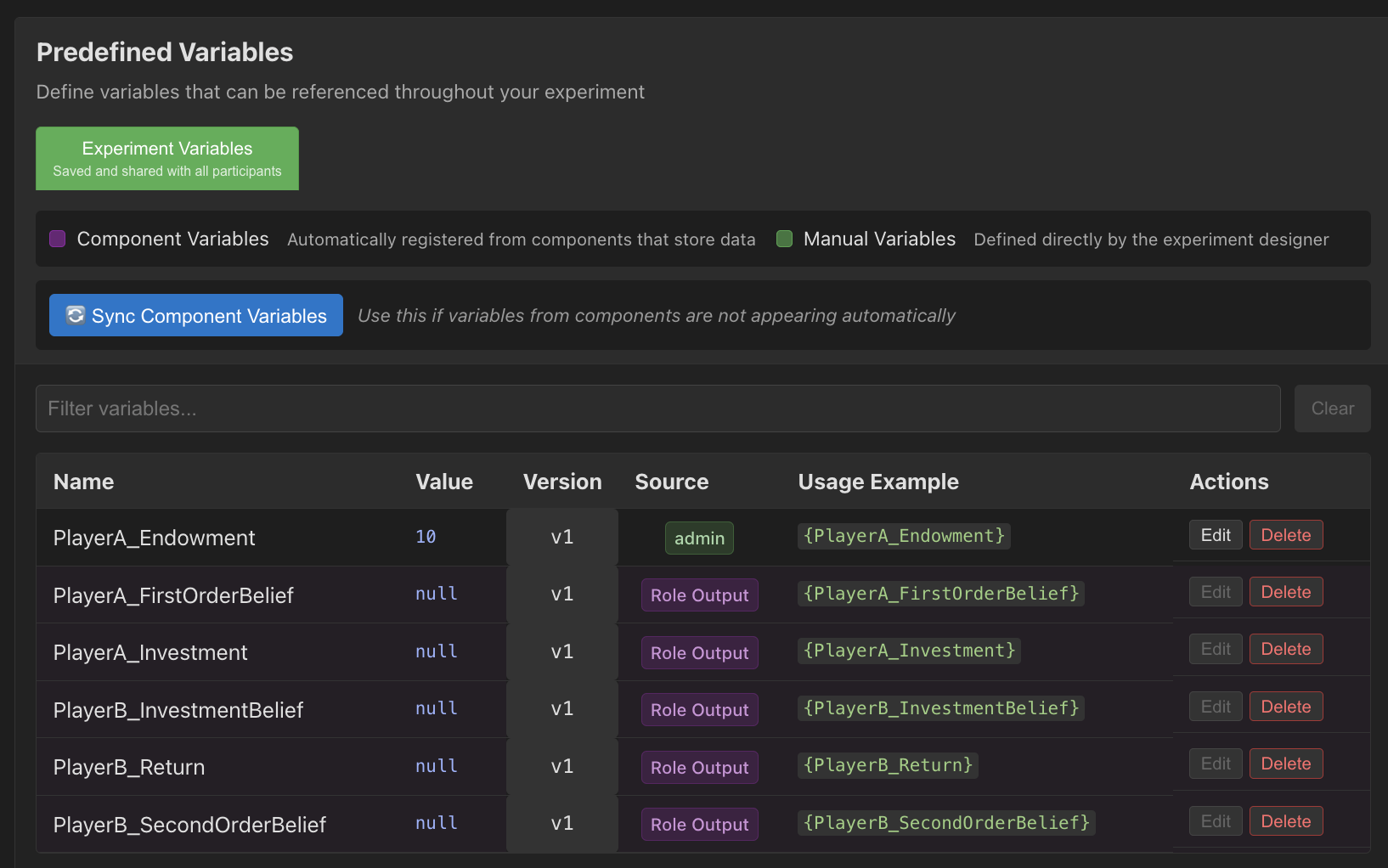
What are Variables?
Variables are named containers that store values which can change during an experiment. They allow you to:
- Track participant responses
- Control experiment flow
- Customize content based on previous interactions
- Store configuration settings
- Record timing and performance metrics
- Share information between states
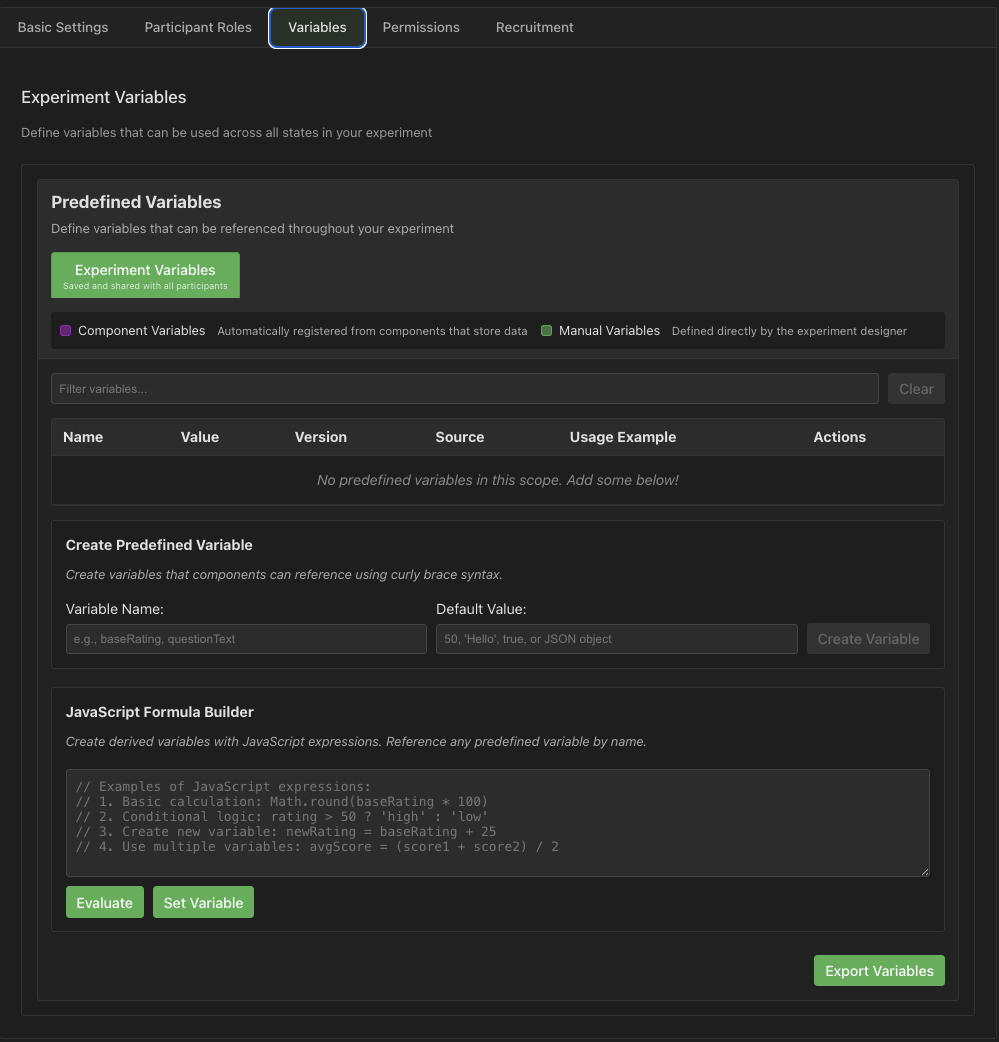 The variables panel showing defined variables and their configuration
Variable Types
The platform supports several variable types:
| Type | Description | Example |
|---|---|---|
string | Text values | "Hello, world" |
number | Numeric values | 42, 3.14 |
boolean | True/false values | true, false |
array | Ordered lists of values | [1, 2, 3], ["red", "green", "blue"] |
object | Collections of key-value pairs | { "name": "John", "age": 30 } |
Choose the appropriate type based on the kind of data you need to store.
Creating Variables
Defining Experiment Variables
To create variables that are available throughout your experiment:
- In the Experiment Designer, go to the "Variables" tab
- Click "Add Variable"
- Enter the variable properties:
- Name: A unique identifier (use camelCase by convention)
- Type: The data type (string, number, boolean, array, object)
- Initial Value: Starting value when the experiment begins
- Description: Purpose of the variable (for documentation)
- Click "Save" to create the variable
Variable Naming Conventions
Use clear, descriptive names for your variables:
- Use camelCase (e.g.,
responseTime,participantAge) - Be specific (e.g.,
videoWatchDurationrather than justtime) - Use prefixes for related variables (e.g.,
surveyQ1,surveyQ2) - Avoid special characters except underscores
Scope and Visibility
Variables have different scopes:
- Experiment Variables: Available throughout the entire experiment
- State Variables: Local to a specific state (prefixed with state name)
- Participant Variables: Specific to individual participants
- Global Variables: Shared across all participants in a session
The visibility depends on how you define and access the variables.
Using Variables
In Text Content
You can insert variable values into text using curly braces with the variable name:
Hello, {participantName}! Your score is {score}.
This will replace the variable placeholders with their current values.
Text fields also support HTML formatting tags (<b>, <i>, <u>, etc.) which can be combined with variables:
<b>{participantName}</b>, your score is <u>{score}</u> points!
See Text Component - HTML Formatting for the full list of supported tags.
Variable Validation
The platform automatically validates variable references as you type:
- ✓ Green checkmark: All referenced variables exist
- ⚠ Orange warning: One or more variables are missing
This real-time validation helps catch typos and missing variables before you run your experiment.
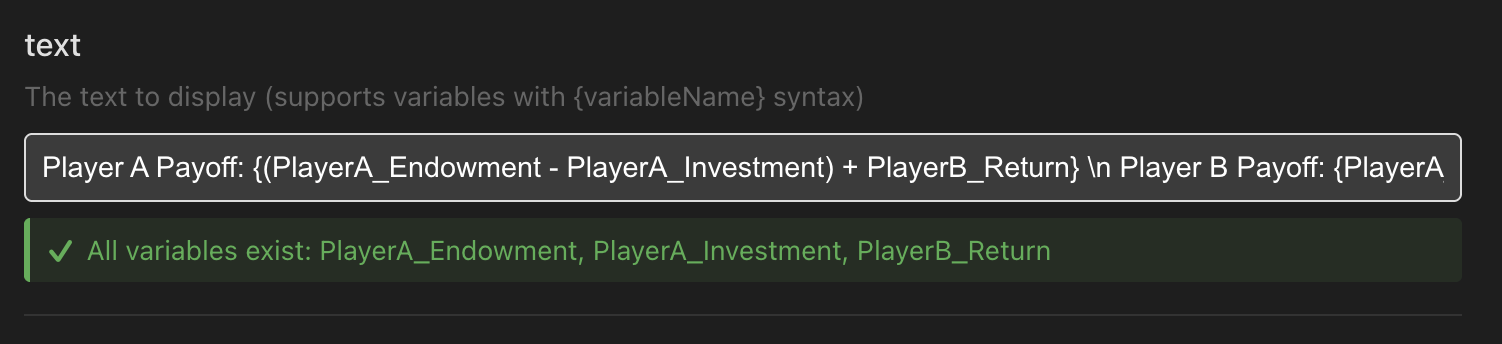 Validation feedback showing which variables exist and which are missing
In Component Properties
Variables can be used in many text fields throughout the platform. The system automatically validates variable references in:
Component Configuration Fields:
- Text Display: Text content field
- VAS Rating: Question/prompt text, min/max/initial values (supports formulas)
- Multiple Choice: Question/prompt text
- Ranking: Question/prompt text
- Text Input: Prompt text
- Waiting Screen: Message and ready message fields
- Audio Recording: Prompt text
- Rapid Rate: Prompt text
Role-Specific Configuration:
- Waiting Messages: When configuring role-specific waiting screens, the waiting message field supports variable syntax
- Any role-specific text content
For example, you can use variables to:
- Display participant names:
Welcome, {participantName}! - Show calculated values:
Your score is {score1 + score2} - Create dynamic prompts:
Rate the video you just watched (duration: {videoDuration}) - Show role-specific information:
Player A invested {playerA_investment} - Set min/max values dynamically:
{baseValue * multiplier}
Modifying Variables
Setting Variable Values
Variables can be updated in several ways:
- Component Outputs: Many components automatically update variables with user input
- Direct Assignment: Set variables directly in state actions
- Expressions: Calculate new values based on formulas
- Event Handlers: Update variables in response to events
Using Expressions
You can use expressions to calculate variable values:
// Math operations
totalScore = questionScore + bonusPoints;

// String manipulation
fullName = firstName + " " + lastName;

// Working with arrays
selectedItems.push(newItem);

// Conditional assignment
status = age >= 18 ? "adult" : "minor";
The expression editor provides autocomplete and validation.
Variable Initialization
Variables are initialized:
- When the experiment starts (for experiment-level variables)
- When a state is entered (for state-level variables)
- When a participant joins (for participant-level variables)
You can set initial values in the variable definition.
Collecting Data with Variables
Response Capture
Components can store user input in variables:
- Rating Scales: Store numeric ratings
- Multiple Choice: Store selected options
- Text Input: Store entered text
- Media Components: Store interaction metrics (e.g., time spent watching)
Configure the "Output Variable" property of components to capture responses.
Timing Metrics
Track timing data with variables:
// When a state begins
stateStartTime = getCurrentTime();

// When a response is made
responseTime = getCurrentTime() - stateStartTime;
Use the timing functions provided by the platform.
Aggregate Data
You can use variables to collect aggregate data:
// Increment a counter
correctAnswers = correctAnswers + 1;

// Add to a running total
totalScore = totalScore + questionScore;

// Track history in an array
responseHistory.push({
  question: currentQuestion,
  response: selectedAnswer,
  time: responseTime
});
This is useful for calculating overall performance.
Advanced Variable Techniques
Variable Transformations
Transform data between types when needed:
// Convert string to number
numericValue = parseInt(stringValue);

// Convert number to string
stringValue = numericValue.toString();

// Convert string to boolean
boolValue = (stringValue === "true");
These conversions can be done in expressions.
Array Operations
Arrays are useful for collections of values:
// Access item by index
currentQuestion = questions[questionIndex];

// Add item to end
responseHistory.push(newResponse);

// Remove last item
lastItem = responseHistory.pop();

// Get array length
totalQuestions = questions.length;
Arrays are zero-indexed, so the first item is at position 0.
Object Operations
Objects store structured data:
// Create an object
participantData = {
  id: participantId,
  age: participantAge,
  gender: participantGender
};

// Access properties
currentAge = participantData.age;

// Update properties
participantData.completionTime = getCurrentTime();
Objects are useful for grouping related data.
Random Value Generation
Generate random values for experiments:
// Random integer between min and max (inclusive)
randomNumber = randomInt(1, 10);

// Random decimal between 0 and 1
randomValue = Math.random();

// Random item from an array
randomStimulus = randomChoice(stimuliList);

// Random true/false value
randomBoolean = Math.random() < 0.5;
Random values are useful for stimulus selection and counterbalancing.
Debugging Variables
Variable Inspector
Use the Variable Inspector to debug your experiment:
- Preview your experiment
- Open the developer panel
- Go to the "Variables" tab
- See the current value of all variables in real-time
Logging Values
Add logging to debug complex experiments:
console.log("Current question index:", questionIndex);
console.log("Participant response:", userResponse);
View the logs in the browser console during testing.
Variable Reference Validation
The Experiment Designer automatically validates variable references in component text fields. When you type {variableName} in a text field:
- Valid references (variable exists) appear highlighted in green
- Invalid references (variable not defined) appear highlighted in red with a warning
This helps catch typos and missing variable definitions before running your experiment. Validation is debounced so it doesn't interfere with typing.
Best Practices
- Plan Variables Ahead: Design your variable structure before building
- Use Descriptive Names: Choose names that clearly indicate the variable's purpose
- Document Variables: Add descriptions explaining how each variable is used
- Initialize Properly: Set appropriate initial values for all variables
- Check Types: Ensure variables contain the expected data types
- Avoid Overuse: Only create variables you actually need
- Group Related Variables: Use prefixes or objects to group related data
- Test Edge Cases: Verify behavior with extreme or unexpected values
Next Steps
Now that you understand variables, explore these related topics: