Experiment Instructions
Clear, comprehensive instructions are essential for successful experiments. HyperStudy provides flexible ways to present instructions to participants at different stages of your experiment, ensuring they understand tasks and procedures.
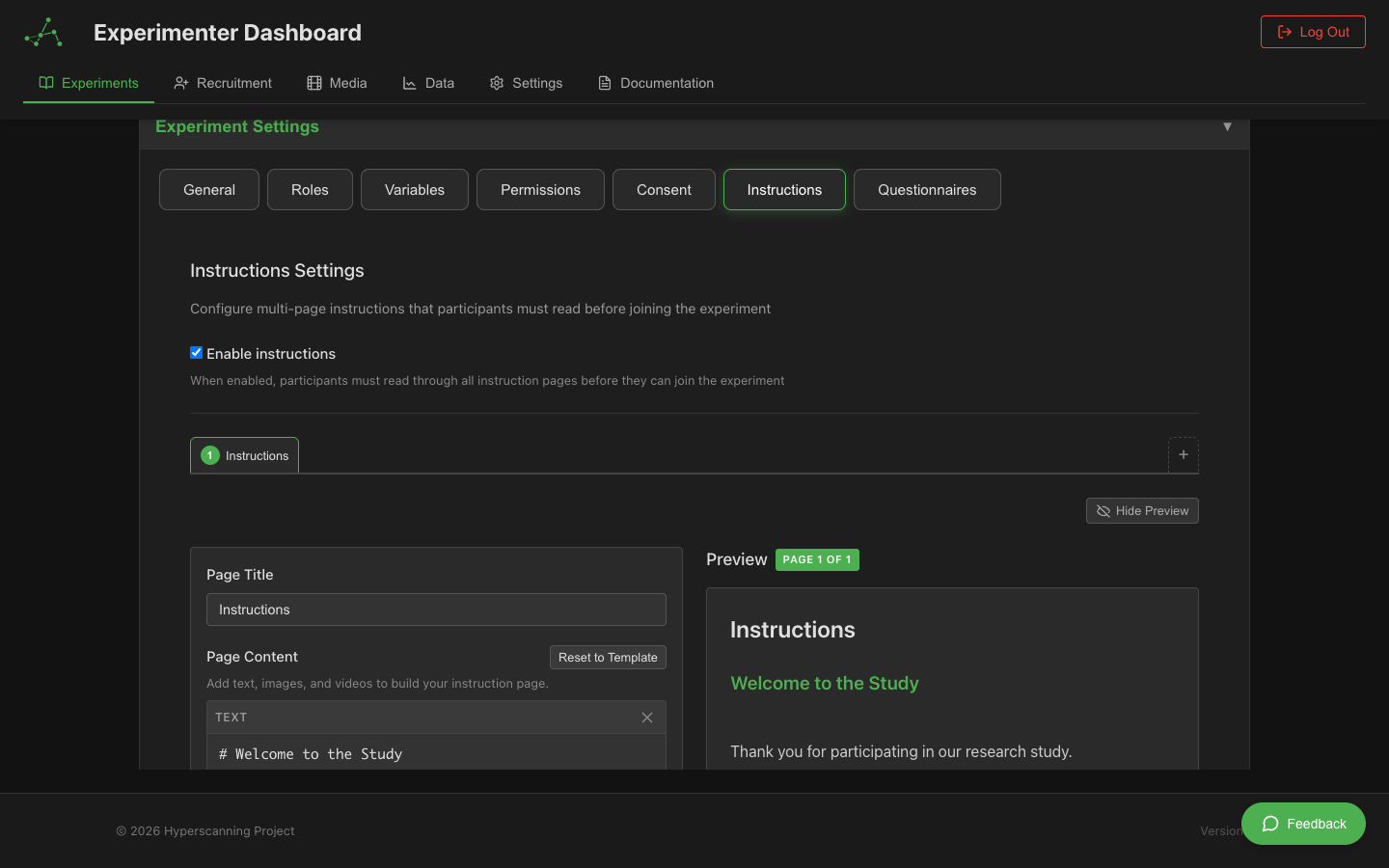
Overview
The instruction system in HyperStudy allows you to:
- Present instructions at any point in your experiment
- Use rich text formatting and media
- Create role-specific instructions
- Implement comprehension checks
- Control pacing and navigation
- Track instruction viewing time
Instructions in Participant Flow
Instructions are the second required gate in the participant journey, presented after consent and before the waiting room.
Flow Position
Lobby → Consent → [INSTRUCTIONS] → Waiting Room → Experiment
                   ↑ You are here
Entry Requirement:
- ✅ Consent form must be completed
- Participant authenticated and consented
Completion Requirement:
- ✅ Must complete all instruction pages to proceed to waiting room
- ✅ Comprehension checks must be passed (if enabled and required)
- Participants cannot enter waiting room until instructions complete
- Multiple attempts allowed for comprehension checks (configurable)
What Happens:
- Participant completes consent form
- Instruction pages displayed sequentially
- Participant reads each page
- Comprehension questions presented (if configured)
- Participant answers questions
- System validates answers
- If passed OR no questions: proceeds to waiting room
- If failed: retry allowed (up to max attempts)
- If max attempts exceeded: session flagged, cannot proceed
Why This Matters:
- Ensures participants understand procedures before experiment
- Prevents confusion during main experiment
- Improves data quality (informed participants)
- Required for ethical compliance
- Allows screening for attention/understanding
For a comprehensive view of the entire participant experience, see the Participant Flow Guide.
Types of Instructions
Welcome Instructions
Initial instructions that orient participants:
-
Study Overview
- Brief description of the study purpose
- Expected duration
- General overview of tasks
-
Technical Setup
- Browser requirements
- Audio/video setup if needed
- Connection requirements
-
Navigation Guide
- How to proceed through the experiment
- How to respond to different components
- What to do if issues arise
Task Instructions
Specific instructions for experimental tasks:
-
Task Description
- What participants will do
- How to complete the task
- Success criteria
-
Examples
- Sample stimuli or questions
- Practice trials
- Correct response demonstrations
-
Rules and Constraints
- Time limits
- Response requirements
- Prohibited actions
Transition Instructions
Instructions between experiment phases:
-
Phase Transitions
- What just happened
- What comes next
- Any changes in procedure
-
Break Instructions
- Rest period information
- When to return
- How to resume
-
End Instructions
- Study completion confirmation
- Next steps
- Payment information
Creating Instructions
Using the Text Component
The primary way to add instructions:
- Add a Text component to your state
- Enter your instruction content
- Format using the rich text editor
- Configure display settings:
- Font size and style
- Alignment and spacing
- Background and borders
- Animation effects
Rich Text Formatting
Available formatting options:
- Text Styles: Bold, italic, underline
- Headers: H1, H2, H3 for organization
- Lists: Numbered and bulleted lists
- Colors: Text and highlight colors
- Alignment: Left, center, right, justify
- Links: External resources or references
Example formatted instructions:
<h2>Task Instructions</h2>

<p>In this task, you will:</p>
<ol>
  <li><strong>View</strong> a series of images</li>
  <li><strong>Rate</strong> each image on a scale</li>
  <li><strong>Submit</strong> your response</li>
</ol>

<p style="color: red;">Important: Respond as quickly as possible!</p>
Adding Media to Instructions
Enhance instructions with visual aids:
-
Images
- Screenshots of the interface
- Example stimuli
- Diagrams or flowcharts
- Icons for emphasis
-
Videos
- Demonstration videos
- Animated tutorials
- Recorded examples
-
Audio
- Narrated instructions
- Example sounds
- Alert tones
To add media:
- Upload media files to your experiment
- Insert using the media button in the text editor
- Configure size and alignment
- Add captions if needed
Role-Specific Instructions
Configuring Different Instructions by Role
For multi-role experiments:
- Enable role configurations on the Text component
- Create different instruction sets for each role
- System automatically shows correct version
Example configuration:
{
  "component": "text",
  "roleConfigs": {
    "0": {
      "content": "As the SPEAKER, you will describe the image..."
    },
    "1": {
      "content": "As the LISTENER, you will guess which image..."
    }
  }
}
Shared vs. Unique Instructions
Balance common and role-specific content:
- Shared Section: General information all participants need
- Role Section: Specific instructions for each role
- Emphasis: Highlight role-specific elements
Comprehension Checks
HyperStudy includes a built-in comprehension check system that allows you to embed quiz questions directly into instruction pages. This ensures participants understand critical information before entering the waiting room and beginning the experiment.
Enabling Comprehension Checks
To add comprehension questions to an instruction page:
- Navigate to Experiment Settings → Instructions tab
- Select the instruction page you want to add questions to
- Scroll to the Comprehension Check section
- Click + Add Questions button
- Configure your quiz settings and questions
Question Types
The system supports four question types:
1. Multiple Choice
Single-answer selection from a list of options.
Configuration:
- Add 2 or more options
- Select the correct answer
- Options can be randomized for each participant
- Provide explanation for incorrect answers
Example:
Question: How long do you have to respond to each image?
Options:
  ○ 5 seconds
  ● 10 seconds  (correct)
  ○ No time limit
  ○ 30 seconds

Explanation: You have exactly 10 seconds to view and rate each image.
2. True/False
Simple boolean questions for straightforward facts.
Example:
Question: You can pause the experiment at any time.
○ True
● False  (correct)

Explanation: Once the experiment begins, you cannot pause. Please ensure you have enough time before starting.
3. Short Text
Open-ended text responses validated by keywords or phrases.
Validation Methods:
- Keywords: Check if all required keywords are present
- Acceptable Answers: List of exact phrases that are correct
- Partial Match: Allow substring matching
- Case Sensitive: Optionally enforce case matching
- Minimum Length: Require minimum character count
Example:
Question: In your own words, what is the main goal of this study?
Required Keywords: observe, rate, video
Case Sensitive: No
Minimum Length: 10 characters

Acceptable Answers:
- "Observe and rate videos"
- "Watch videos and provide ratings"
4. Numeric
Numerical answers with flexible validation.
Validation Options:
- Exact Match: Must match exactly
- Tolerance: Accept ± a certain amount (e.g., ±5)
- Range: Accept any value within min-max range
- Allow Decimals: Accept or reject decimal numbers
- Unit Display: Show units (e.g., "trials", "seconds", "%")
Example:
Question: How many trials will you complete?
Correct Answer: 50
Validation: Exact match
Allow Decimals: No
Unit: trials
Quiz Configuration
Configure how the comprehension check behaves:
Basic Settings
- Title: Header text for the quiz (default: "Check Your Understanding")
- Required: Whether participants must pass to continue
- Passing Score: Percentage needed to pass (0-100%, default: 80%)
Retry Settings
- Allow Retry: Let participants try again if they fail
- Max Attempts: Maximum number of tries (1-10, default: 3)
Feedback Settings
- Show Feedback: Display score and results after submission
- Show Explanations: Show explanations for incorrect answers
Randomization
- Randomize Questions: Show questions in random order
- Randomize Options: Shuffle multiple choice options (maintains correctness)
Creating Questions
For each question:
- Select Question Type: Choose from the four types
- Write Question Text: Clear, specific question about the instructions
- Configure Answer:
- Multiple Choice: Add options, mark correct answer
- True/False: Select correct answer
- Short Text: Add keywords or acceptable answers
- Numeric: Set correct value and validation rules
- Add Explanation: Provide feedback for incorrect answers
- Reorder if Needed: Use drag handles to rearrange questions
Question Management
- Add Question: Click "+ Add Question" button
- Edit Question: Click "Edit" on any question
- Delete Question: Click "×" to remove a question
- Reorder: Use ↑ ↓ arrows to move questions up or down
Participant Experience
Taking the Quiz
- Participants read the instruction page
- Click "Check Your Understanding" button to start
- Answer all questions
- Click "Submit Answers" button
- Receive immediate feedback with score
Passing the Quiz
If the participant passes (score ≥ passing score):
- ✓ Success message displayed with score
- Green checkmark indicator
- Can proceed to next page or waiting room
Failing the Quiz
If the participant fails (score < passing score):
- Score displayed with incorrect answers highlighted
- Explanations shown for wrong answers (if enabled)
- Attempts remaining counter displayed
- "Try Again" button available (if retry allowed)
Maximum Attempts Reached
If participant exhausts all attempts without passing:
- Final score shown
- Cannot proceed if comprehension check is required
- Session flagged with
comprehensionFailedstatus - Recorded in participant session data
Data Recording
All comprehension check interactions are automatically recorded:
Events Recorded:
instructions.comprehension_attempt: Each submissioninstructions.comprehension_passed: When participant passesinstructions.comprehension_failed: When max attempts reachedinstructions.completed: When all instructions finished
Data Captured:
- Page index and title
- Attempt number
- All answers provided
- Score and pass/fail status
- Number of correct answers
- Timestamp of each attempt
Access this data in the Data Management dashboard under the "Pre-Experiment" category.
Best Practices
Writing Effective Questions
-
Test Key Concepts
- Focus on critical information participants must remember
- Avoid trivial details
- Test understanding, not memorization
-
Write Clear Questions
- Use simple, unambiguous language
- Avoid trick questions
- One concept per question
-
Provide Helpful Feedback
- Explain why an answer is correct/incorrect
- Point to relevant section of instructions
- Be constructive and encouraging
Appropriate Difficulty
- Passing Score: Set realistically (70-80% is typical)
- Question Count: 3-5 questions per instruction page
- Max Attempts: Allow 2-3 attempts for learning
- Question Difficulty: Mix easy recall with comprehension questions
Strategic Placement
Add comprehension checks after instruction pages that cover:
- Complex task procedures
- Critical timing or response requirements
- Role-specific responsibilities
- Important constraints or rules
- Safety or ethical considerations
Examples
Simple Task Comprehension
Instruction Page:
"You will rate videos on a scale from 1-7. You have 10 seconds per video.
Press the spacebar to submit your rating."

Comprehension Check:
Required: Yes
Passing Score: 100%
Max Attempts: 3

Questions:
1. What is the rating scale range? (Numeric)
   - Correct Answer: 1-7 (range: min=1, max=7)

2. How do you submit a rating? (Multiple Choice)
   - Press Enter
   - Click Submit button
   - Press spacebar ✓
   - Wait for timeout
Complex Procedure Check
Instruction Page:
"Part 1: You'll watch videos with a partner.
Part 2: Rate each video independently.
Part 3: Discuss your ratings with your partner."

Comprehension Check:
Required: Yes
Passing Score: 75%
Max Attempts: 2

Questions:
1. In what order do the experiment parts occur? (Short Text)
   - Keywords: watch, rate, discuss
   - Acceptable: "watch then rate then discuss"

2. Do you rate videos before or after watching with your partner? (Multiple Choice)
   - Before watching
   - After watching ✓
   - During watching
   - No rating required

3. Will you discuss ratings with your partner? (True/False)
   - True ✓
   - False
Troubleshooting
| Issue | Solution |
|---|---|
| Participants failing repeatedly | Lower passing score or reduce question difficulty |
| Questions too easy | Increase difficulty; test comprehension not just recall |
| Taking too long | Reduce number of questions; simplify question text |
| Confusion about task | Add examples to instructions before quiz |
| Text answers not validating | Check keyword spelling; add more acceptable answers |
| Participants skipping instructions | Make comprehension check required |
Advanced Usage
Progressive Difficulty
Distribute questions across multiple instruction pages:
- Page 1 (Overview): Simple recall questions
- Page 2 (Procedure): Comprehension questions
- Page 3 (Details): Application questions
Conditional Content
Use comprehension data to:
- Identify struggling participants
- Trigger additional training
- Flag for experimenter review
- Adjust difficulty dynamically
Multi-Language Support
For international studies:
- Create separate instruction pages per language
- Add comprehension checks to each version
- Ensure questions test same concepts
- Verify translations with native speakers
Navigation and Pacing
Controlling Instruction Flow
Configure how participants move through instructions:
-
Manual Advance
- Participant clicks "Next" when ready
- Can review at their own pace
- Option to go back
-
Timed Advance
- Auto-advance after set duration
- Minimum viewing time required
- Countdown timer shown
-
Locked Advance
- Must view for minimum time
- Must scroll to bottom
- Must complete activities
Multiple Instruction Pages
For complex instructions:
- Break into logical sections
- Use multiple Text components
- Add navigation between pages
- Show progress indicators
- Allow reviewing previous pages
Best Practices
Writing Clear Instructions
-
Be Concise
- Use simple, direct language
- Avoid unnecessary details
- Focus on essential information
-
Be Specific
- Give exact requirements
- Provide concrete examples
- Specify response formats
-
Use Structure
- Number sequential steps
- Use headers for sections
- Highlight important points
-
Consider Reading Level
- Write for broad audience
- Define technical terms
- Avoid jargon
Visual Design
-
Formatting
- Use consistent formatting
- Create visual hierarchy
- Ensure good contrast
-
White Space
- Don't overcrowd text
- Use paragraph breaks
- Add margins and padding
-
Emphasis
- Bold key points
- Use color sparingly
- Add icons for important notes
Testing Instructions
-
Pilot Testing
- Test with naive participants
- Check comprehension
- Time how long reading takes
- Get feedback on clarity
-
Iterative Improvement
- Revise based on feedback
- Clarify confusion points
- Add examples where needed
- Simplify complex sections
Examples
Simple Task Instructions
## Your Task

You will see pairs of shapes on the screen.

**Your job:** Decide if the shapes are the SAME or DIFFERENT.

- Press **S** for SAME
- Press **D** for DIFFERENT

Respond as quickly and accurately as possible.

Click "Begin" when you're ready to start!
Detailed Procedure Instructions
## Experiment Procedure

### Part 1: Baseline (5 minutes)
First, you'll complete a baseline assessment:
- Answer demographic questions
- Complete a mood questionnaire
- Do a practice task

### Part 2: Main Task (20 minutes)
The main experiment consists of:
1. **Learning Phase**: Study word pairs
2. **Test Phase**: Recall the pairs
3. **Feedback**: See your performance

### Part 3: Follow-up (5 minutes)
Finally, you'll:
- Rate your experience
- Complete a final questionnaire
- Receive your completion code

**Total time: Approximately 30 minutes**

*Note: Take breaks between parts if needed*
Interactive Instructions with Checks
## How to Use the Rating Scale

You'll rate images using a sliding scale from 1 to 7:

- **1** = Very Negative
- **4** = Neutral
- **7** = Very Positive

**Try it now:** Rate this practice image:
[Practice Image]
[Rating Scale Component]

✓ Great! You've learned how to use the scale.

**Remember:**
- Click and drag the slider
- You can change your rating before submitting
- Click "Next" after each rating
Troubleshooting
| Issue | Solution |
|---|---|
| Instructions too long | Break into multiple pages; use collapsible sections |
| Participants skip instructions | Add minimum viewing time; require scrolling |
| Confusion about tasks | Add examples and practice trials |
| Role confusion | Use clear labels and visual indicators |
| Technical terms unclear | Add glossary or hover definitions |
| Instructions not visible | Check component settings and state configuration |
Advanced Features
Dynamic Instructions
Instructions that adapt based on:
- Participant responses
- Performance metrics
- Experimental condition
- Previous experience
Multi-Language Support
For international studies:
- Create instruction versions in multiple languages
- Allow participants to select language
- Ensure translations are verified
- Maintain consistent formatting
Accessibility
Ensure instructions are accessible:
- Provide alt text for images
- Use semantic HTML
- Ensure keyboard navigation
- Consider screen reader compatibility
- Offer audio narration option
Next Steps
Related documentation:
- Participant Flow Guide - Complete participant journey
- Comprehension Checks - Technical documentation
- Waiting Room System - Next stage after instructions
- Consent Forms - Previous stage before instructions
- Text Component - Creating instruction content
- Multiple Choice Component - Comprehension questions
- Experiment States - Main experiment design
- Getting Started - Experimenter guide