Connecting LLM Providers
Agents need an LLM provider to run. HyperStudy supports Anthropic (default), OpenAI, Gemini, and custom self-hosted endpoints. Provider API keys are configured once in Settings and then used by every agent you deploy.
Adding an API key
- Open Settings → API Keys.
- Find the card for your provider (Anthropic, OpenAI, or Gemini).
- Paste your provider API key and save.
- Click Test connection to confirm the key works before you rely on it in a deployment.
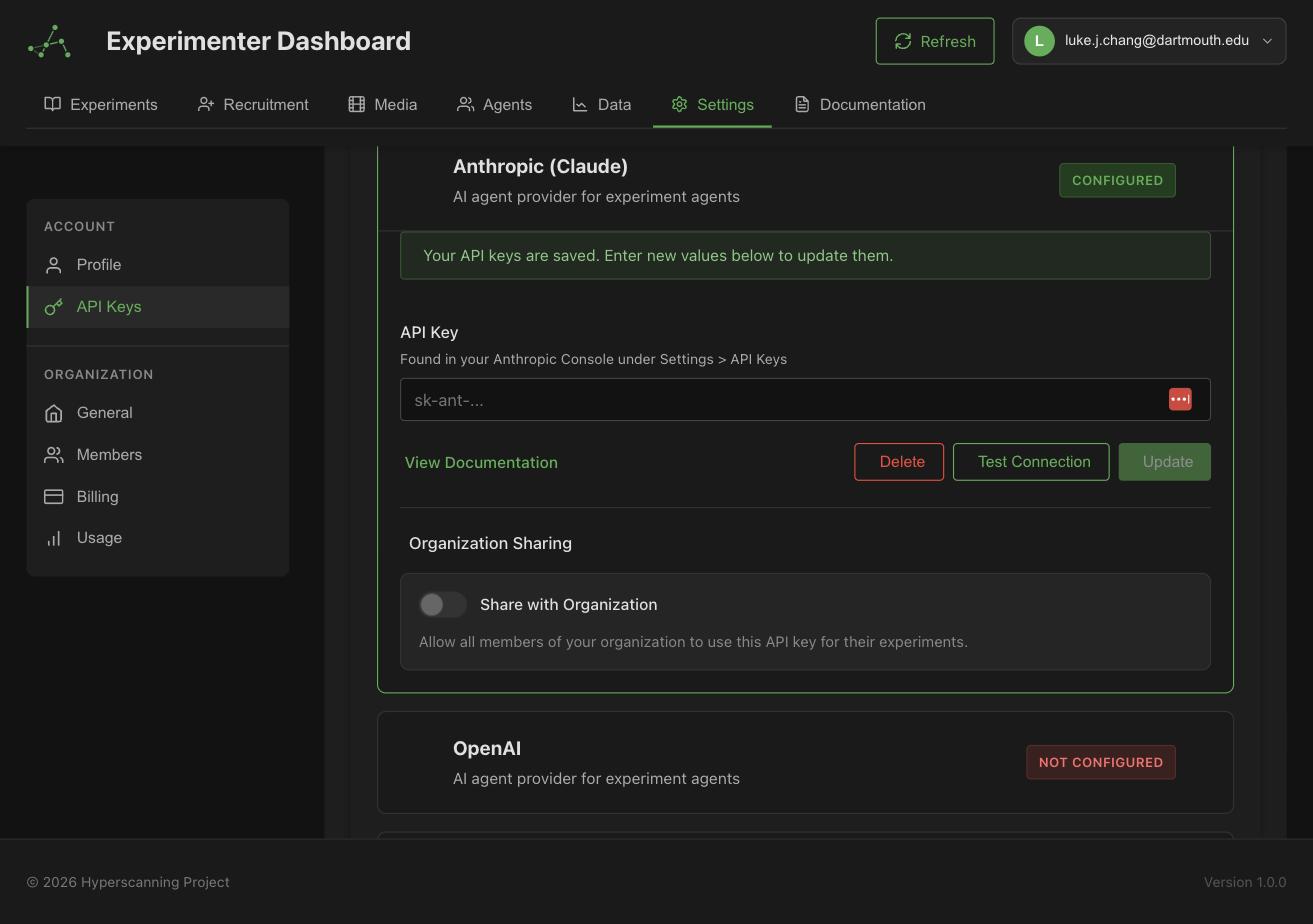
These are keys for LLM providers (used to power agents), not HyperStudy's own REST API keys — those are managed separately.
Personal vs. organization-shared keys
- Personal keys are used by deployments you launch.
- Organization sharing: an organization admin can share a key with the whole organization, so members don't each need their own. If both exist, each member chooses which to prefer in Settings.
Custom endpoints
The Custom provider lets agents run against your own OpenAI-compatible server — a lab workstation with a GPU, a DGX box, or any hardware you control. This keeps inference local (useful for data-governance requirements) and lets you study open-weight models.
Setting up a custom endpoint has its own guide, including the hyperstudy-agent CLI that handles serving, contract verification, and tunneling: Custom Agent Endpoints.
Costs and budgets
Agent inference is billed by your provider directly — HyperStudy just uses your key. To keep costs predictable:
- Each agent has a token budget (default 500k) and optional USD budget that stop that agent when exceeded.
- Each agent-only deployment requires a deployment USD budget — a kill switch that stops launching new rooms once estimated spend reaches the cap.
- The deployment monitor shows live spend against budget.
Cost estimates rely on a pricing table for known models. Models missing from the table are flagged as cost unknown in run manifests — treat their spend numbers as incomplete and rely on your provider's billing dashboard.