Previewing Experiments
Preview lets you run your entire experiment yourself — every role at once, side by side — before you recruit a single participant. It launches a live, interactive copy of your design in a new browser tab, with one pane per role, and gives you a control bar to step through the states exactly as your participants will experience them.
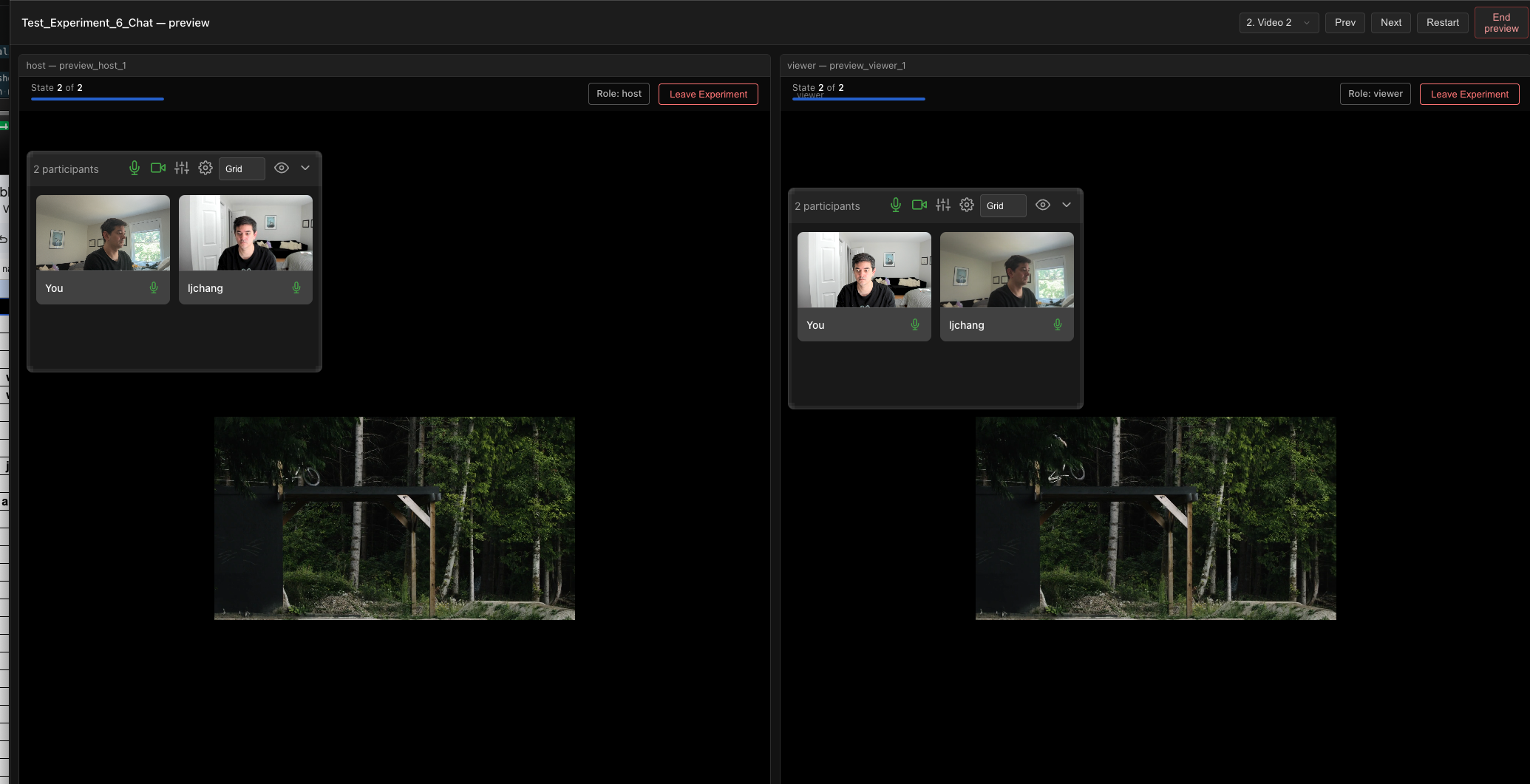
Preview is the fastest way to catch problems that only appear when the experiment is actually running: a role that sees the wrong stimulus, a chat that isn't wired up, a state that advances too early, or a mapping that resolves to the wrong value.
When to use Preview
Reach for Preview whenever you want to experience the experiment rather than just read its configuration:
- Before recruiting. Walk through the full flow yourself so you don't spend recruitment budget discovering a broken state.
- After changing roles, stimuli, or states. Confirm each role still sees what it should at every step.
- To check communication components. Video chat and text chat run live across the panes, so you can verify participants can actually see and message each other.
- To rehearse timing. Step through states in order to feel the pacing before a live session.
Preview is meant for exploration. Run it as many times as you like, try every path, and don't worry about leaving a mess behind — nothing you do in a preview is recorded (see What's real and what isn't).
Launching a preview
There are two ways to open a preview, both labeled Preview:
- From the experiment designer. While editing or viewing an experiment, click the Preview button in the header.
- From your experiments list. Click the Preview action on the experiment's row.
Either one opens the preview in a new browser tab, so your designer or dashboard stays open behind it. The preview builds one pane for each role your experiment defines and starts all of them at the first state.
Your browser will ask for camera and microphone permission the first time a pane needs them — the same prompt your participants see. Allow it so the video and audio panes behave realistically. You can grant it once per pane.
The preview interface
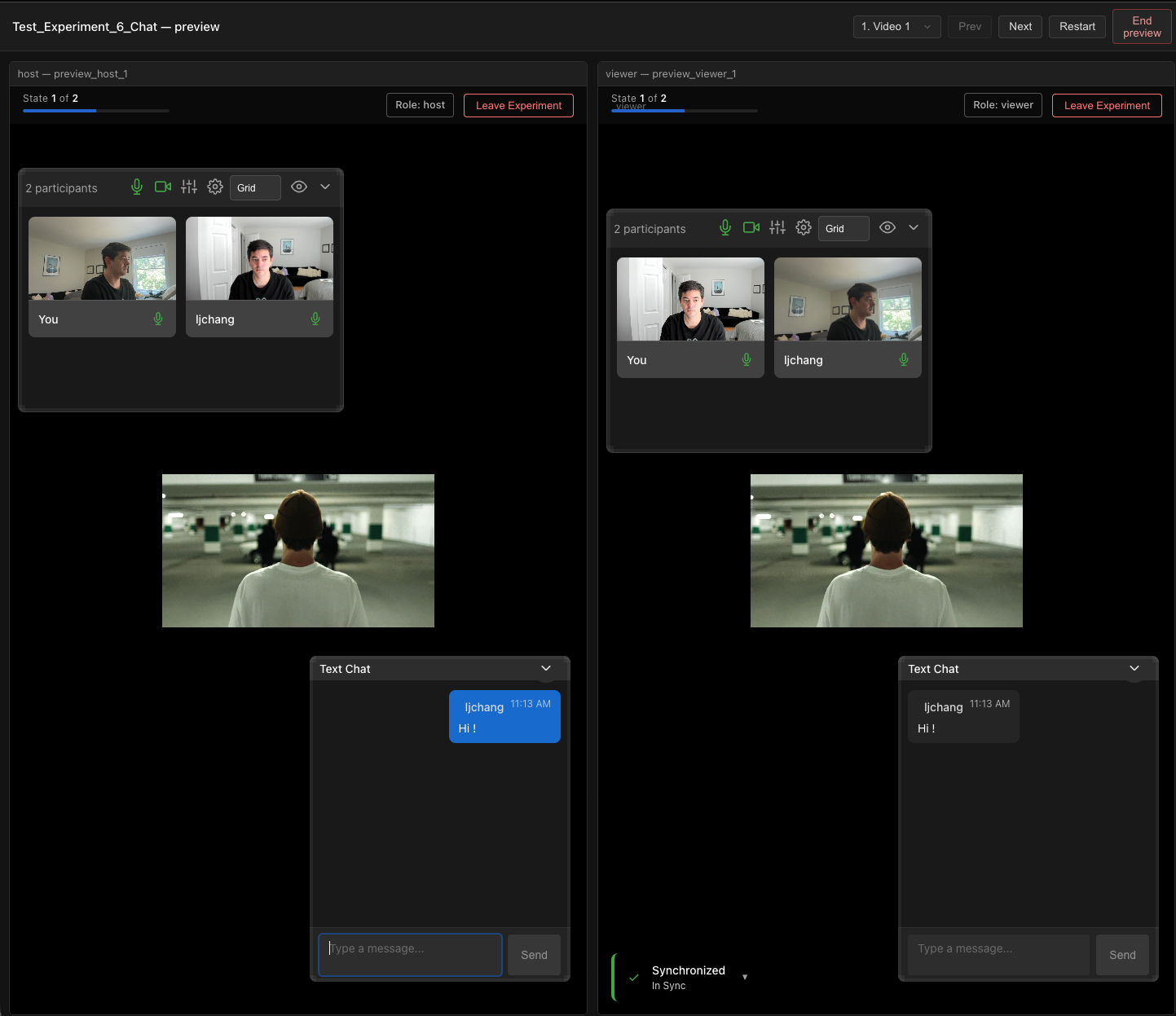
The preview window has two parts: a control bar across the top, and the role panes below it.
Role panes
Each pane is a fully working copy of the experiment running as one role. The pane header shows the role name and a participant label (for example, host — preview_host_1), and a progress bar showing how far through the states that role is (State 1 of 2). Whatever a real participant in that role would see — stimuli, components, video chat, text chat — appears here, live.
Because every role runs at once, the panes talk to each other just like real participants would. Type a message in one pane's text chat and it appears in the others; the video tiles show each pane's camera; a synchronized stimulus video plays in step across all of them.
Control bar
The control bar drives the whole preview at once — every pane responds together:
| Control | What it does |
|---|---|
| State selector (dropdown) | Jump directly to any state in the experiment. |
| Prev | Step back to the previous state. |
| Next | Advance all panes to the next state. |
| Restart | Reset the preview to the first state and start over. |
| End preview | Close the preview and release its resources. |
Use Next and Prev to walk the experiment one state at a time, the state selector to jump straight to a state you want to inspect, and Restart to re-run a flow from the top without relaunching.
What's real and what isn't
Preview runs the real experiment engine, so most of what you see behaves exactly as it will in production — but it is a throwaway session designed for testing.
What's real:
- Your camera, microphone, and video/audio chat connect for real, so you can verify the communication experience.
- Text chat is live between panes.
- Stimulus videos stay synchronized across roles, just as they do for participants.
- State logic, role-specific stimuli, and variable mappings are evaluated exactly as they will be in a live run — this is what makes preview useful for catching configuration mistakes.
What isn't:
- No data is saved. Responses, ratings, chat messages, recordings, and events from a preview are discarded — nothing is written to your experiment's data.
- The session is temporary. Each preview lives for about one hour, then expires automatically.
- Completion is different. When the experiment reaches its end, the preview shows a "Preview run complete" screen instead of sending you to the post-experiment questionnaire. This protects your own account from ever recording a questionnaire response for a test run.
Because preview data is never saved, don't use it to verify that data collection works — for that, run a real test session through a deployment. Preview verifies the participant experience, not the data pipeline.
Limits and good to know
- Role panes: Preview supports up to 16 roles at once. If your experiment defines more, it won't preview.
- Concurrent previews: You can have up to 3 previews open at a time. If you hit the limit, use End preview to close one before opening another.
- Access: Anyone who can access an experiment can preview it — owners, collaborators, and, for shared or public experiments, anyone with access. Previewing never changes the experiment or its data.
- Closing up: Click End preview (or just close the tab) when you're done to free the session immediately rather than waiting for it to expire.
Tips
- Test the unhappy paths. Use the state selector to jump around and confirm each state stands on its own, not just the linear walk-through.
- Preview after every meaningful change. It's quick, and it catches role- and mapping-specific bugs that are invisible in the static configuration.
- Watch all panes together. The most common issues — a role seeing the wrong stimulus, chat not connecting — only show up when you compare the panes side by side.