Lab servers and RunPod
Some steps, such as object tracking, need an NVIDIA GPU, and a long video takes a while on a laptop. The annotator can send steps, or a whole run, to other machines:
- a lab server: a Linux machine with an NVIDIA GPU that you reach over SSH;
- a cloud GPU: RunPod, or AWS through SkyPilot. A machine is started for the work and deleted when it ends, and billed by the hour.
You set these up in Settings > Compute. Extract offers a machine only once its Test passes, and leaves out one whose Test fails, saying why.
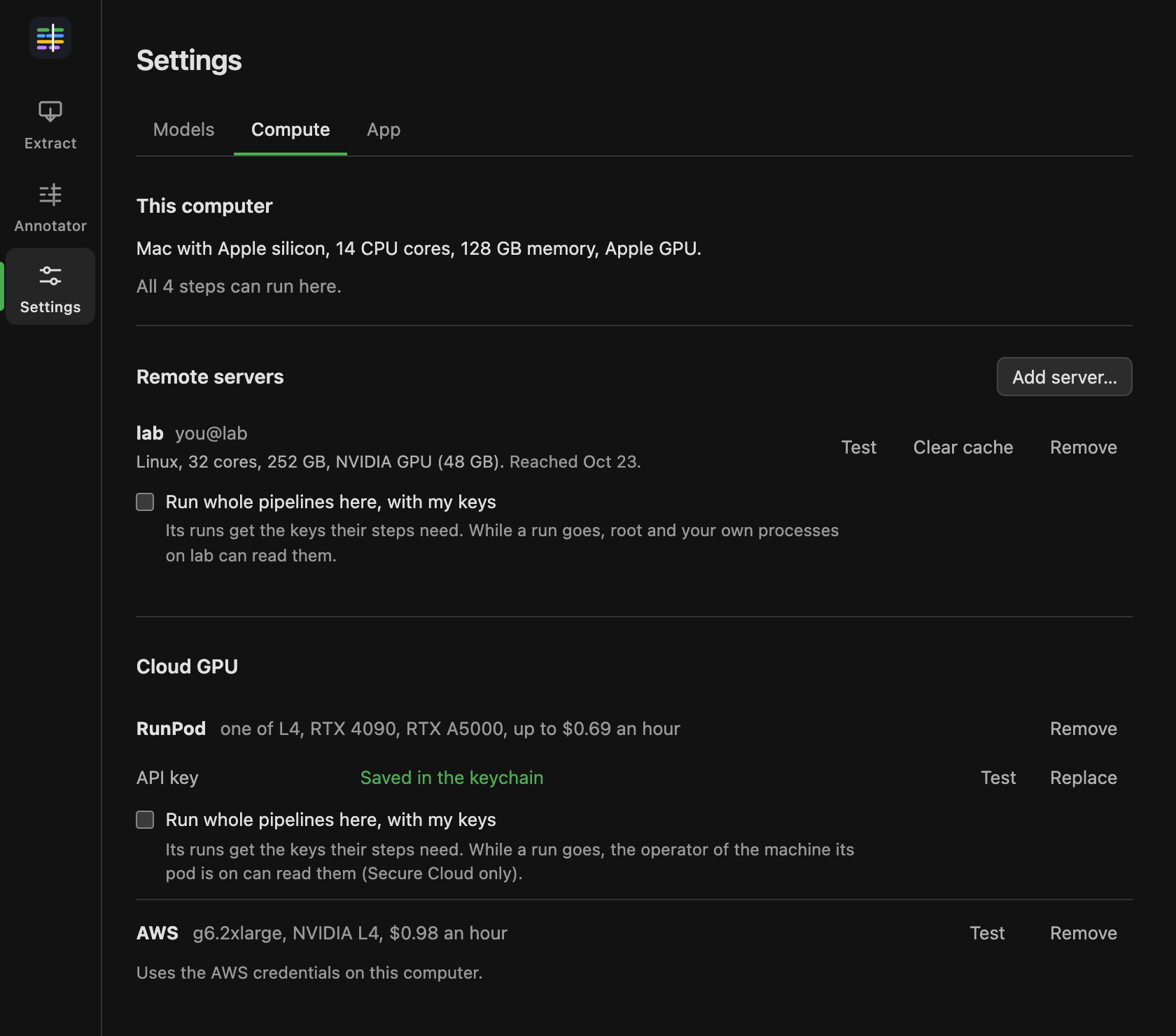
Settings > Compute also describes This computer: its processor, memory and GPU, and which steps can run on it.
Add a lab server
The server needs uv, ffmpeg and ffprobe on the path, and NVIDIA drivers. It does not need root or the pipeline
installed: the app sends the code each step needs.
- In Settings > Compute, under Remote servers, choose Add server….
- In Host, enter what you would give
ssh:you@gpu.example.edu, or a host name from your~/.ssh/config(they are suggested as you type). - Give it a Name: what Extract calls it, in lower-case letters, digits and
-. - Choose Test connection. It reaches the server and says what it has, such as its GPU and memory, without changing anything there.
- Choose Add server.
The app connects with your own ssh, your own keys and your ~/.ssh/config. It never copies your keys or asks for a
password, so the server must accept your key without one (an ssh-agent is fine). Advanced overrides the user,
port and key file, and sets the folder the app uses on the server (~/.cache/hyperstudy-perception by default).
On the server, everything the app keeps is in that folder, readable only by you. Each step's work folder is deleted once its results are fetched. Videos and results are kept a week to save sending them again, or less when the disk runs low. Clear cache empties the folder.
For each server, Test reaches it again, and Remove removes it from the app.
Add RunPod
- In Settings > Compute, under Cloud GPU, choose Add provider…, then RunPod.
- Paste your RunPod API key (from RunPod's settings) and choose Add RunPod. The app checks the key first.
The key is kept in your keychain. Test checks that RunPod can be used now, and changes nothing. Remove removes RunPod and its key.
AWS uses the AWS credentials already on this computer, through SkyPilot.
Run one step elsewhere
With a server or cloud GPU set up, each step that can run elsewhere has a Where … runs menu in Extract. Choose a lab server's GPU or a cloud GPU for that step, and the rest run on this computer. Each choice says about how long the step would take there and, for a cloud GPU, what it can cost at most.
This computer stays in charge of the run, so it needs to stay awake and connected until the run ends. The app keeps the Mac from idling to sleep while such a run goes, but closing the lid still sleeps it.
Run a whole pipeline elsewhere
Run on, at the top of Extract, sends the whole run to a lab server or to RunPod. The run goes on there if this computer sleeps or the app is closed. The app checks on it and imports it when it ends, and lists it under Runs on other machines until then (see Extract a video).
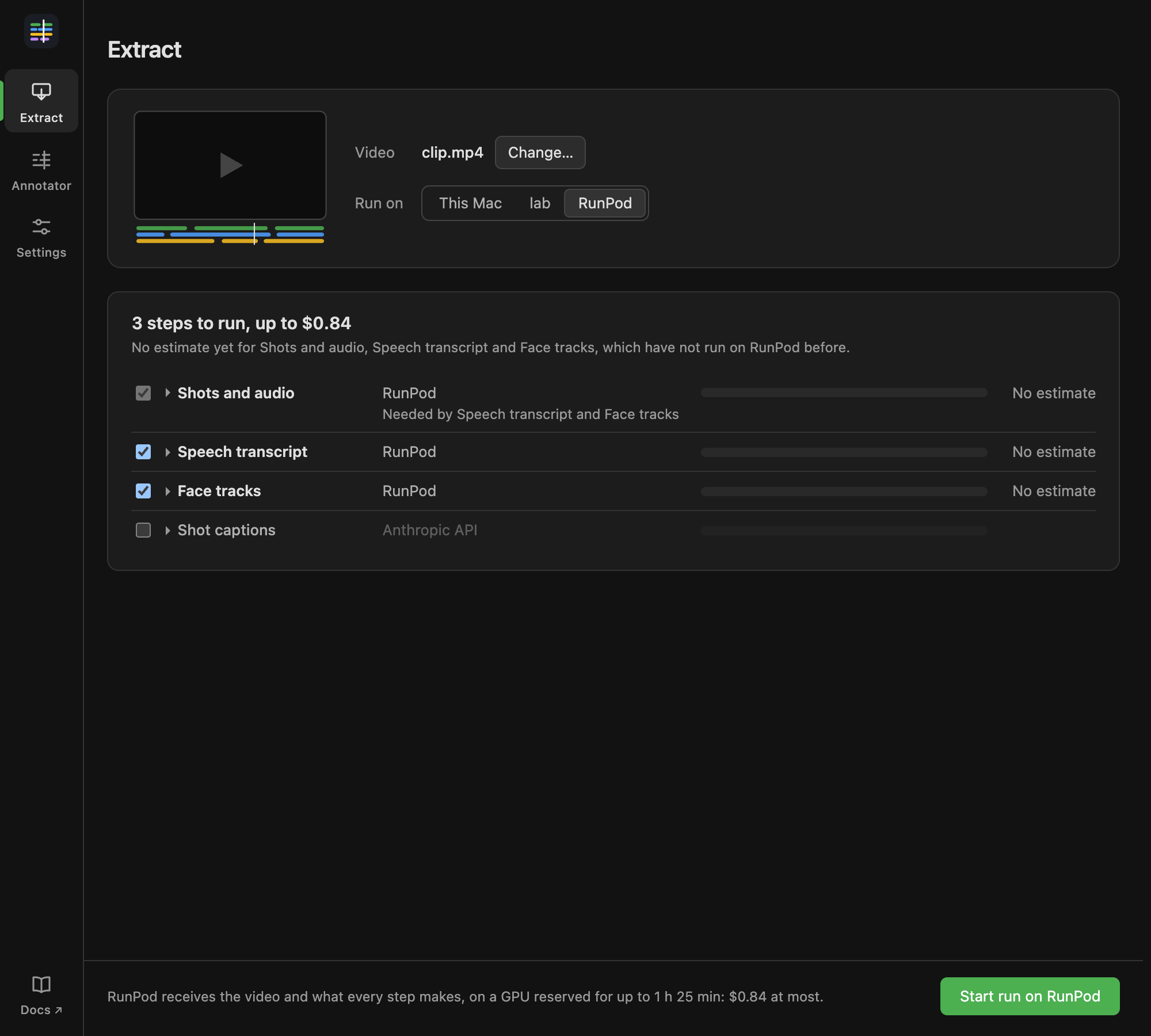
What the run sends: the server or pod receives the video and everything each step makes. Extract says so above Start run.
Your keys. A step that calls an API, such as shot captions with Claude, needs your key where it runs. A whole run elsewhere gets your keys only if you allow it: tick Run whole pipelines here, with my keys for that server or for RunPod. The keys are sent over the SSH connection when a run starts and are not written to the server's disk. Anyone who administers the machine could still read them, which for RunPod means the operator of the machine the pod is on (the app uses RunPod's Secure Cloud only). If you do not allow it, turn those steps off for runs there.
Costs on RunPod
A run on RunPod makes a pod for that run and deletes it when the run ends, however it ends: finished, failed or canceled. Extract says how long the pod is reserved for and what that costs at most, and the run's spending cap covers it, rounded up to the cent. If RunPod's price rose after Extract planned the run, the run is refused and asks you to plan again, so a run never costs more than you were shown.
When the run ends, Extract says what the pod cost (Its pod was deleted: $…). If the app could not delete a pod, the run stays listed and the app tries again the next time it looks. You can also delete the pod in RunPod's console.