Extract a video
Extract runs the perception pipeline on a video. When the run finishes, its result is imported into the library as a bundle and opens in the Annotator.
Start a run
- Choose Extract on the rail, then Choose a video…. The app reads MP4, MOV, M4V, WebM and MKV files.
- If you have set up a lab server or RunPod, choose where the whole run goes under Run on. This Mac is the default. See Lab servers and RunPod.
- Turn on the features you want. Each row is one feature, such as the speech transcript, face tracks or shot captions. The heading above the rows adds up how many steps that is, about how long it will take, and what it costs.
- Choose Start run.
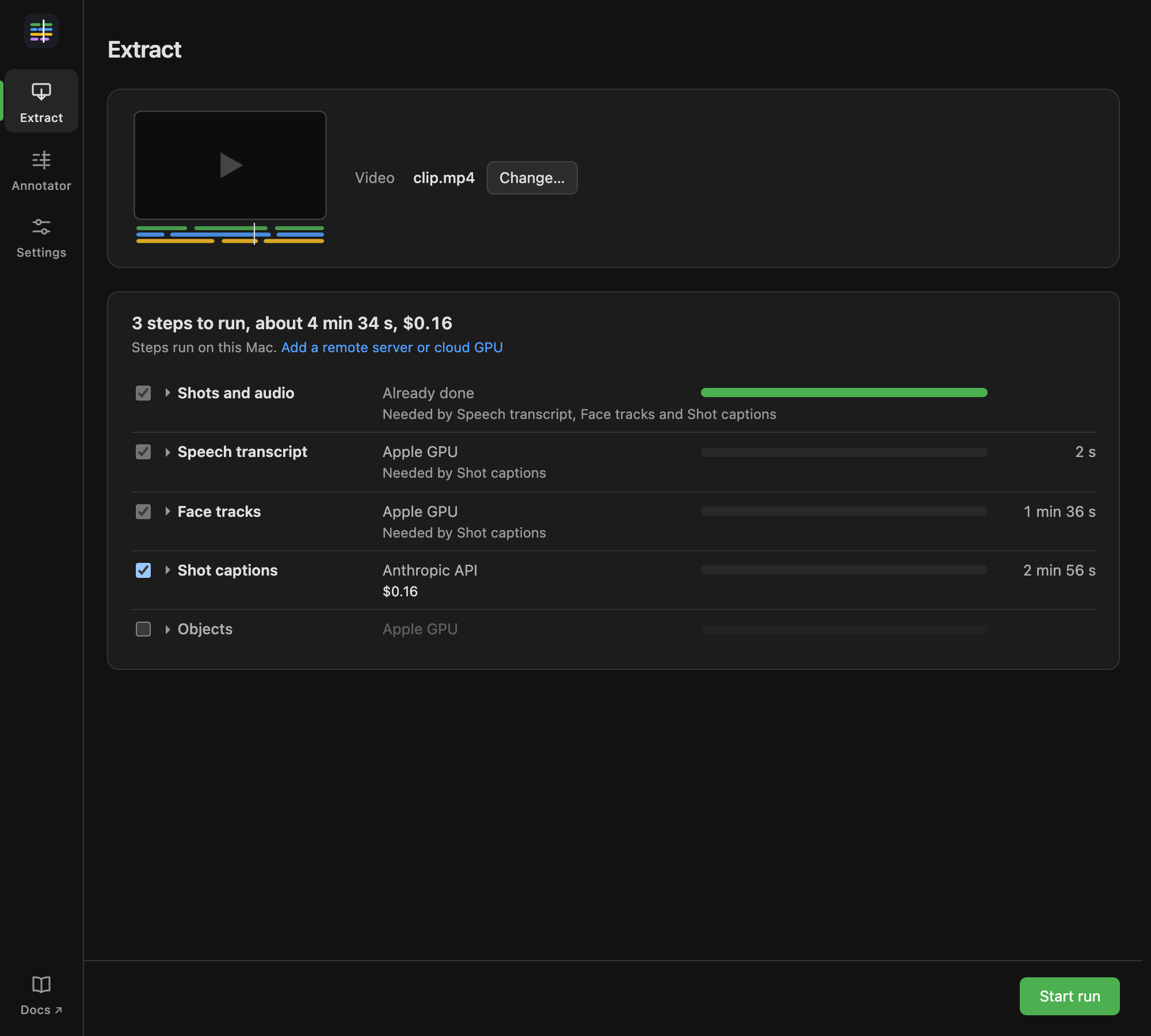
Features that keep everything on your computer and cost nothing start on. Features that send data off it, such as shot captions written by Claude, or that cost money start off. Turning one on is your consent to send what it needs. A feature that another needs is turned on and locked, with Needed by … under it.
Click a feature's name to see what it Makes, the models it Uses and their licences, what it Downloads first, and what Leaves this machine. Some features have settings, such as which Claude model writes the captions. Their defaults come from Settings > Models; a change here applies to this run only.
What a row can say
- Already done: an earlier run made this, and it is reused.
- Needs the Anthropic key: add it in Settings: the step needs a key you have not added. The same goes for the Hugging Face and RunPod keys.
- Turn on … first: it sends data off this machine: this feature needs one that sends data, which is off.
- Cannot run here: this computer cannot run the step, for example without an NVIDIA GPU. Its reason is shown. A lab server or RunPod may be able to run it.
- No estimate yet: this step has not run on this machine before, so the time is not counted.
Where each step runs
When a lab server or cloud GPU is set up, each step that can run elsewhere has a Where … runs menu: this computer's GPU or CPU, an NVIDIA GPU on a lab server, or a cloud GPU. Each choice says about how long the step would take there and, for a cloud GPU, what it costs at most. With nothing set up, Steps run on this Mac. Add a remote server or cloud GPU links to Settings > Compute.
If what you choose cannot be planned, for example because a server stopped answering, Start run waits until you choose again or choose Plan again.
Costs
A run has a spending cap. It covers the APIs the steps call, such as the Claude API for shot captions, plus the most each cloud GPU it uses can cost, rounded up to the cent. The run stops before it spends more. The amounts shown as up to or at most are that cap: a run usually costs less.
While it runs
The heading counts the steps done, and each row shows Waiting, Running, Done, Cached or Failed. The Extract icon on the rail fills as the run goes, so you can see its progress from the Annotator.
- Cancel run stops the run and everything it started.
- Quitting the app cancels a run on this computer. A run on a lab server or RunPod keeps going there, and is brought back to the library the next time the app looks.
- While a run has steps on another machine, the app keeps the Mac from idling to sleep (closing the lid still sleeps it).
When the run ends, the app imports its bundle (Importing into the library…, then Imported into the library.). Open in Annotator opens it. New run starts over. If a step failed, its row says why.
Only one run goes at a time.
Runs on other machines
Runs on other machines lists runs this app started on a lab server or RunPod that are not yet in the library. Extract checks them when it opens and every five minutes while it is showing.
- Show follows a run that is still going.
- A run that finished while the app was closed is imported, and shows In the library with Open in Annotator.
- Dismiss removes a failed run from the list. For a RunPod run it deletes the pod first.
Run it again
You can run the pipeline on the same video again, for example to add a feature. Steps already done are reused. The new bundle is another version of the same video. When you open it, the Annotator offers to carry your corrections over from the earlier version (see Review and annotate).