FRENZ Brainband
Integration guide for the Earable FRENZ brainband with HyperStudy experiments through the HyperStudy Bridge.
Overview
The FRENZ brainband is a soft headband with four EEG electrodes (two forehead pads and two side combs), a pulse sensor and a motion sensor. The Bridge reads the band and publishes its signals over Lab Streaming Layer (LSL), where HyperStudy studies record them.
The Bridge can connect to the band in two ways, chosen in the band's configuration (Configure → Connection):
| Connection | What it gives | Needs |
|---|---|---|
| SDK helper (default) | The band's raw signals and Earable's own derived streams (focus, sleep stage, posture) | An Earable product key |
| openfrenz (experimental) | The band's raw signals, plus eye, brow muscle, heart and head signals computed by openfrenz; a live view; pipelines you can build yourself | No product key |
The two never hold the band at the same time: disconnect one before connecting the other.
The openfrenz signals were checked on one person on two days. See the openfrenz documentation for what each can and cannot say before relying on one in a study.
Setting Up
- Add the FRENZ device in the Bridge (Add Device → Earable FRENZ Brainband) and press Configure.
- Choose the Connection.
- Enter the FRENZ band: its Bluetooth name, such as
FRENZI85, printed on the band. - For the SDK helper, enter the Product Key. For openfrenz, optionally list extra Hugging Face models (see Models from Hugging Face).
- Put the band on, make sure it is not connected to anything else, and press Connect.
The band's name, the product key and any Hugging Face token are kept in the system's credential store (the Keychain on macOS), not in the Bridge's settings.
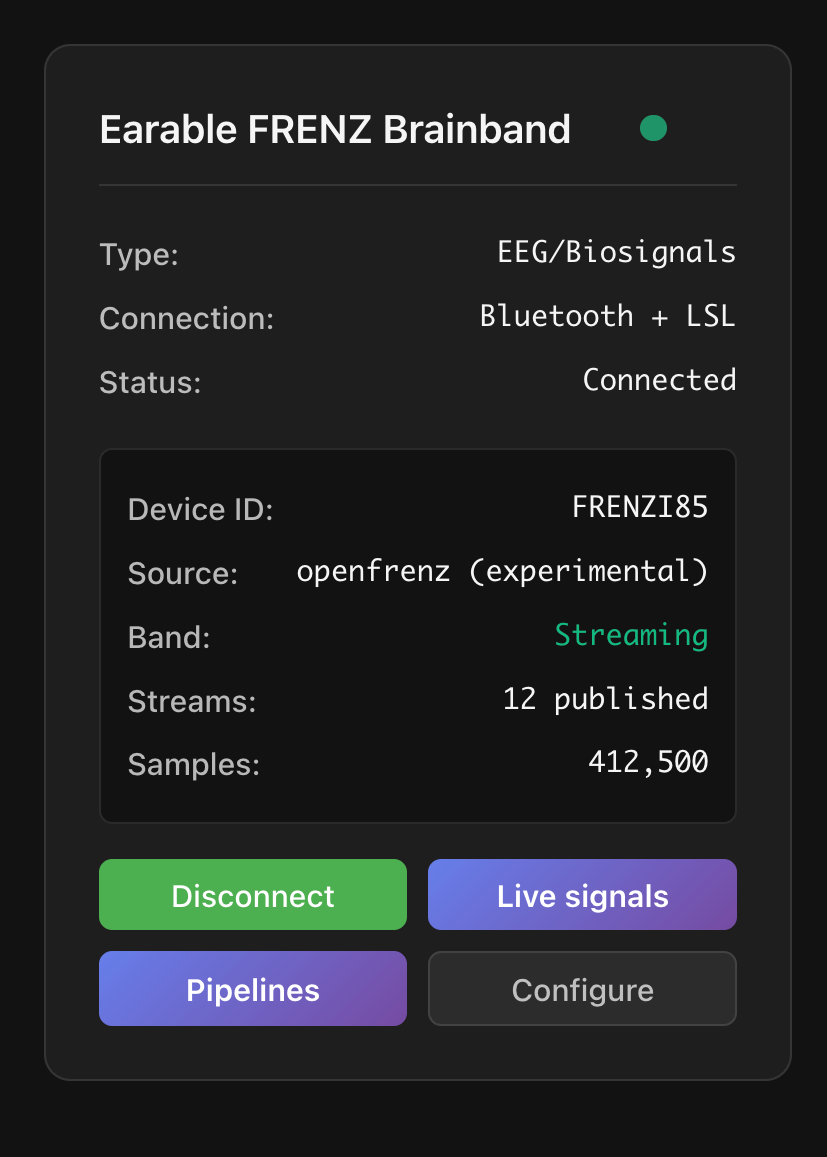
With openfrenz, the card shows the band's state, how many LSL streams are published and how many samples have been sent, and offers Live signals and Pipelines.
What Is Published (openfrenz)
Every stream is named after the band, so two bands never collide. With a band called FRENZI85:
| LSL stream | What it carries |
|---|---|
FRENZI85_EEG | The four electrodes, 125 Hz, raw counts |
FRENZI85_ACCEL, FRENZI85_GYRO | Motion, 50 Hz |
FRENZI85_PPG | Pulse sensor, 25 Hz |
FRENZI85_HR, FRENZI85_SPO2 | The band's own heart rate and oxygen readings |
FRENZI85_CONTACT | How well the electrodes touch the skin |
FRENZI85_EOG_openfrenz | Blinks and horizontal gaze, every 0.2 s |
FRENZI85_BROW_EMG_openfrenz | Forehead muscle activity, every 0.2 s |
FRENZI85_HEART_openfrenz | Heart rate, its variability and a quality score, every 5 s |
FRENZI85_HEAD_openfrenz | Head angle and movement, every second |
FRENZI85_EEG_POWER_openfrenz | Power in the delta to gamma bands, every second |
Pipelines you add (below) are published the same way, as FRENZI85_<NAME>_openfrenz. Each stream's metadata records which model and version produced it.
Live View
Live signals draws the band's signals and every model's output as they arrive. Nothing in the live view changes what is published or recorded.
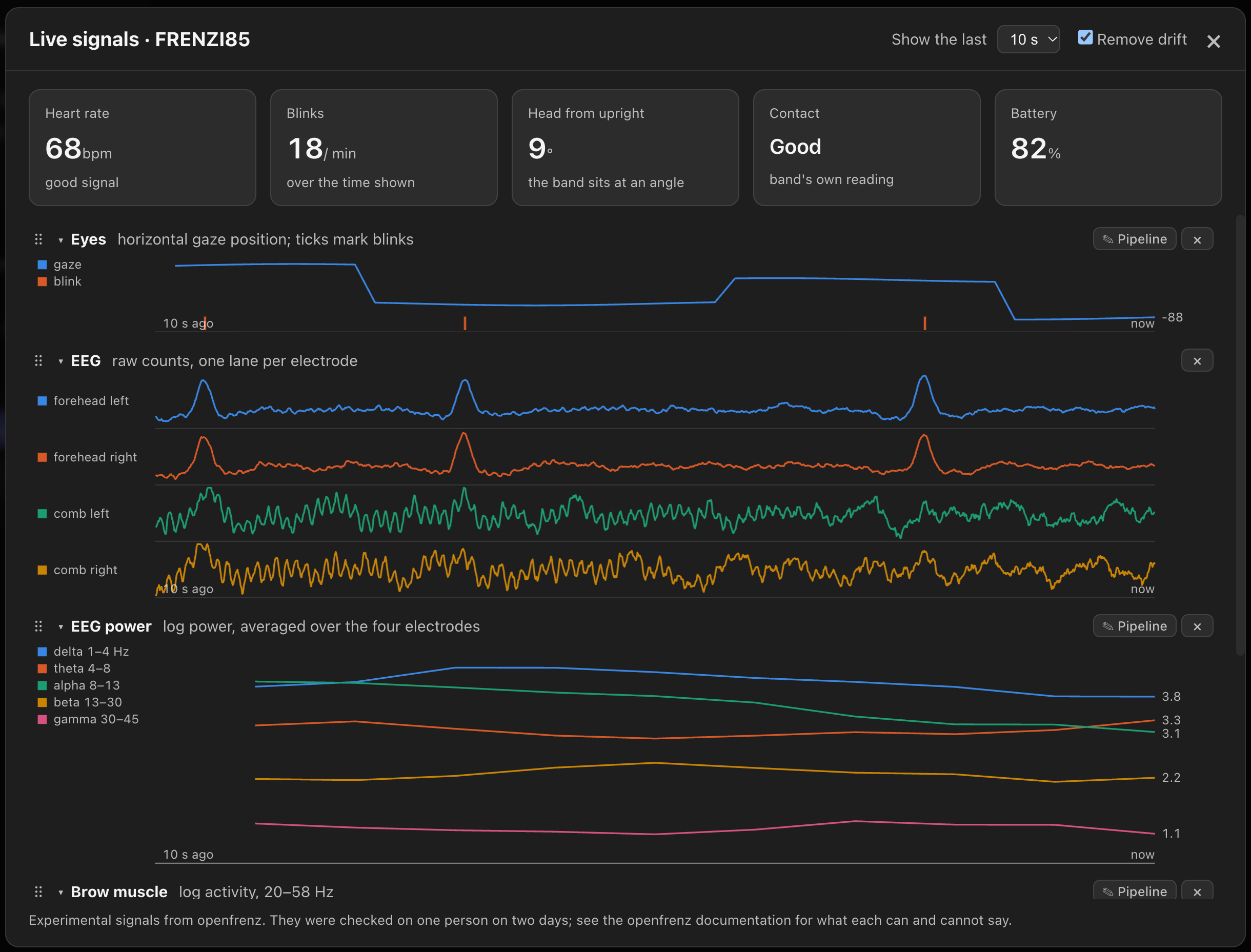
- Tiles at the top: heart rate (with whether the pulse signal is good), blinks a minute, how far the head is from upright, electrode contact and battery.
- Charts below: drag a chart by its handle to reorder it, click its title to collapse it, and × to hide it (Add a chart… brings it back). The layout is remembered on this computer.
- Show the last 5, 10 or 30 seconds, and Remove drift to subtract each trace's one-second average for the drawing.
- ✎ Pipeline on a model's chart opens its pipeline in the editor, and + New signal starts a new one (see below).
The signals in these screenshots are illustrative.
Building Pipelines
A pipeline turns the band's signals into new ones: for example the forehead pads' difference, band-passed, as a level of muscle activity. Press Pipelines on the card (or + New signal in the live view) to open the editor.
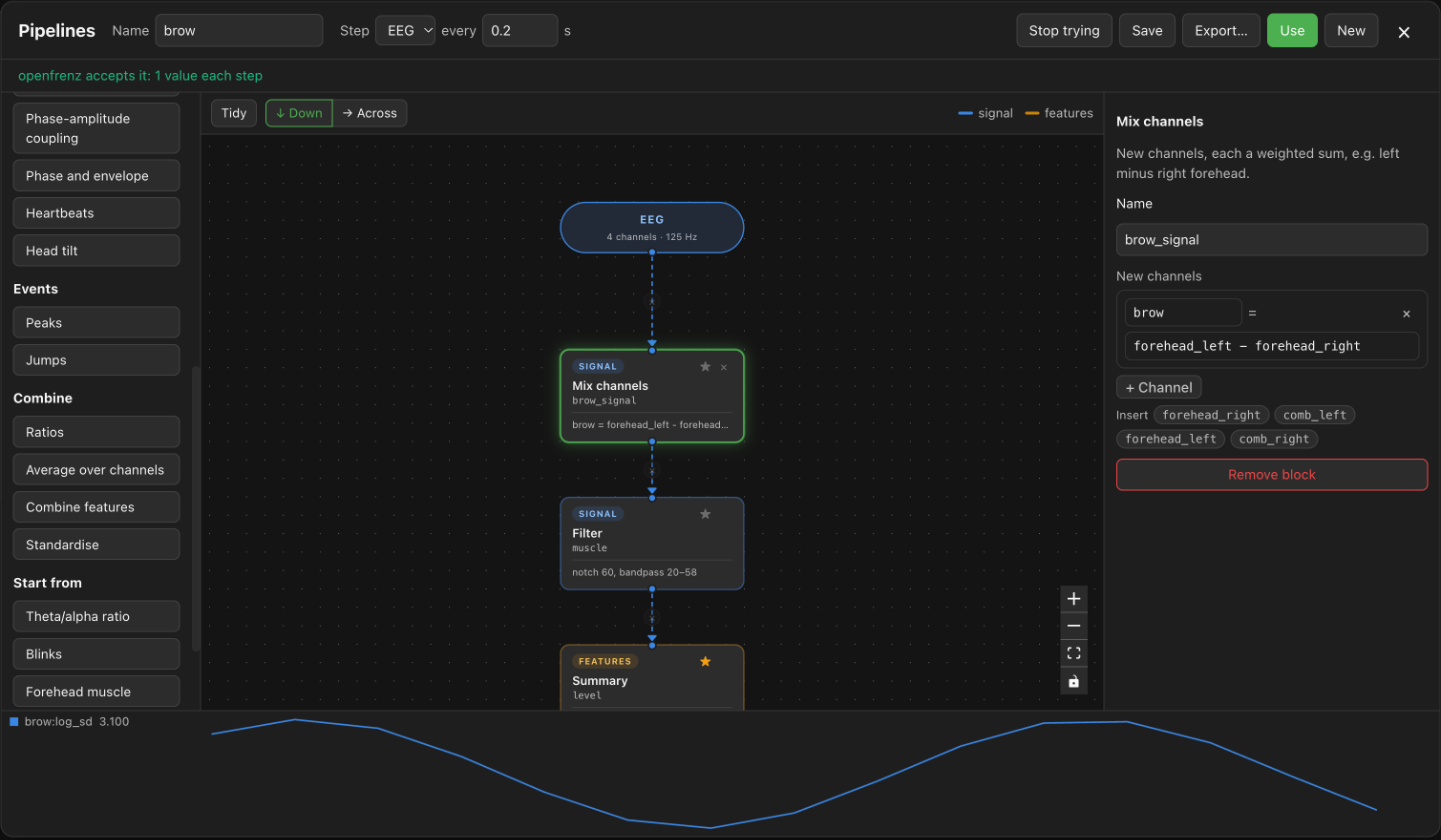
The editor has three parts:
- Left: the band's Streams and the blocks to add, grouped as Signal (choose, mix and filter channels), Features (band power, envelope, wavelets, coherence, coupling, heartbeats, head tilt, signal quality), Events (peaks, jumps) and Combine (ratios, averages). Below them, Start from offers ready-made pipelines, and Saved lists yours.
- Middle: the graph. A new block is wired to the selected one; to wire blocks yourself, drag from one block's bottom dot to another's top dot. Blue wires carry a signal and amber wires carry features (values computed each step). A wire that cannot work, such as features into a filter, is refused with the reason. ★ marks the blocks whose values the pipeline gives. Tidy lays the graph out again, down or across.
- Right: the selected block's settings.
The line under the header says, as you edit, whether openfrenz accepts the pipeline and how many values it gives each step, or what is wrong; the block at fault is outlined in red. Step sets how often the pipeline runs (for example every 0.2 s of EEG).
Settings
Settings that take names offer them instead of asking you to type: the editor knows what each block's input holds.
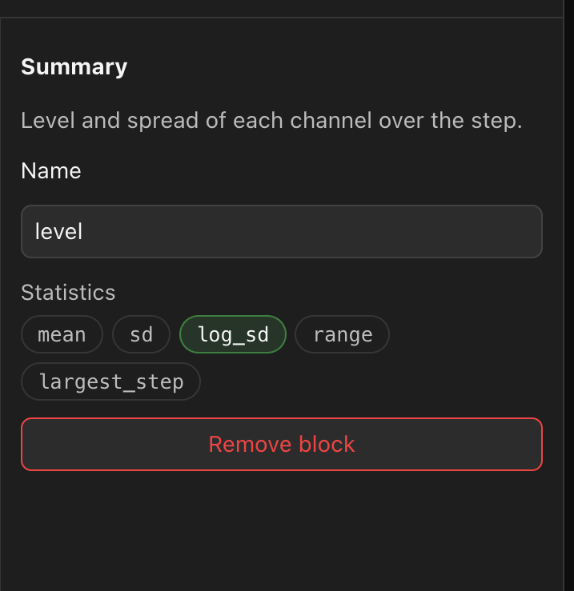
- Channels and statistics are chips: click to choose, in order.
- Mixes are written as formulas over the input's channels, such as
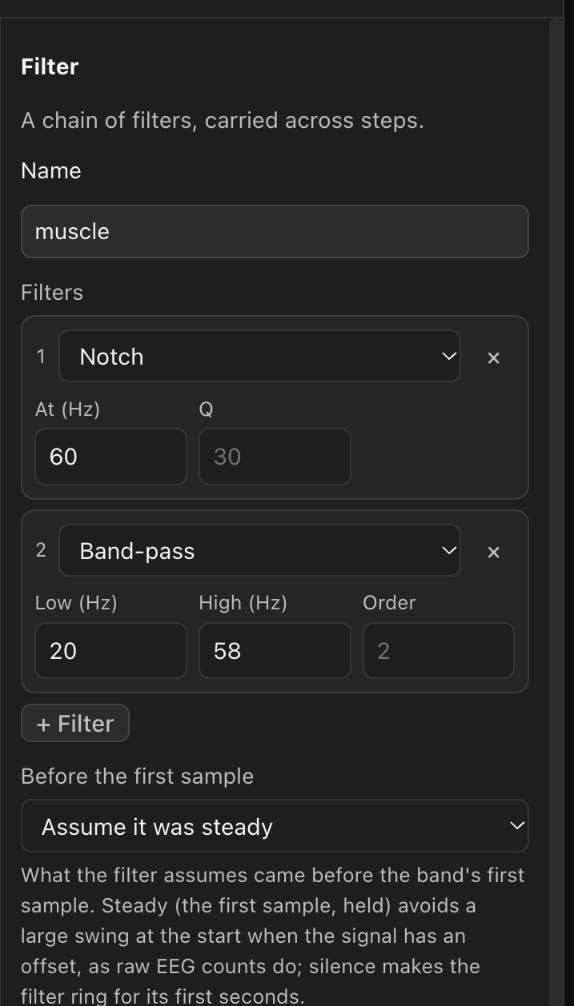
forehead_left - forehead_rightor(forehead_left + forehead_right) / 2 - comb_left. Click a channel's name to insert it. A formula that is not a weighted sum of the input's channels is refused with the reason. - Filters are a chain of steps (band-pass, low-pass, high-pass, notch, remove offset), each with labelled numbers; an empty number uses openfrenz's default, shown in grey. The order of the steps does not change the result. Before the first sample sets what the filter assumes came before the band's first sample: Assume it was steady avoids a large swing at the start on raw EEG.
- Pairs (ratios, coherence) are chosen from dropdowns.
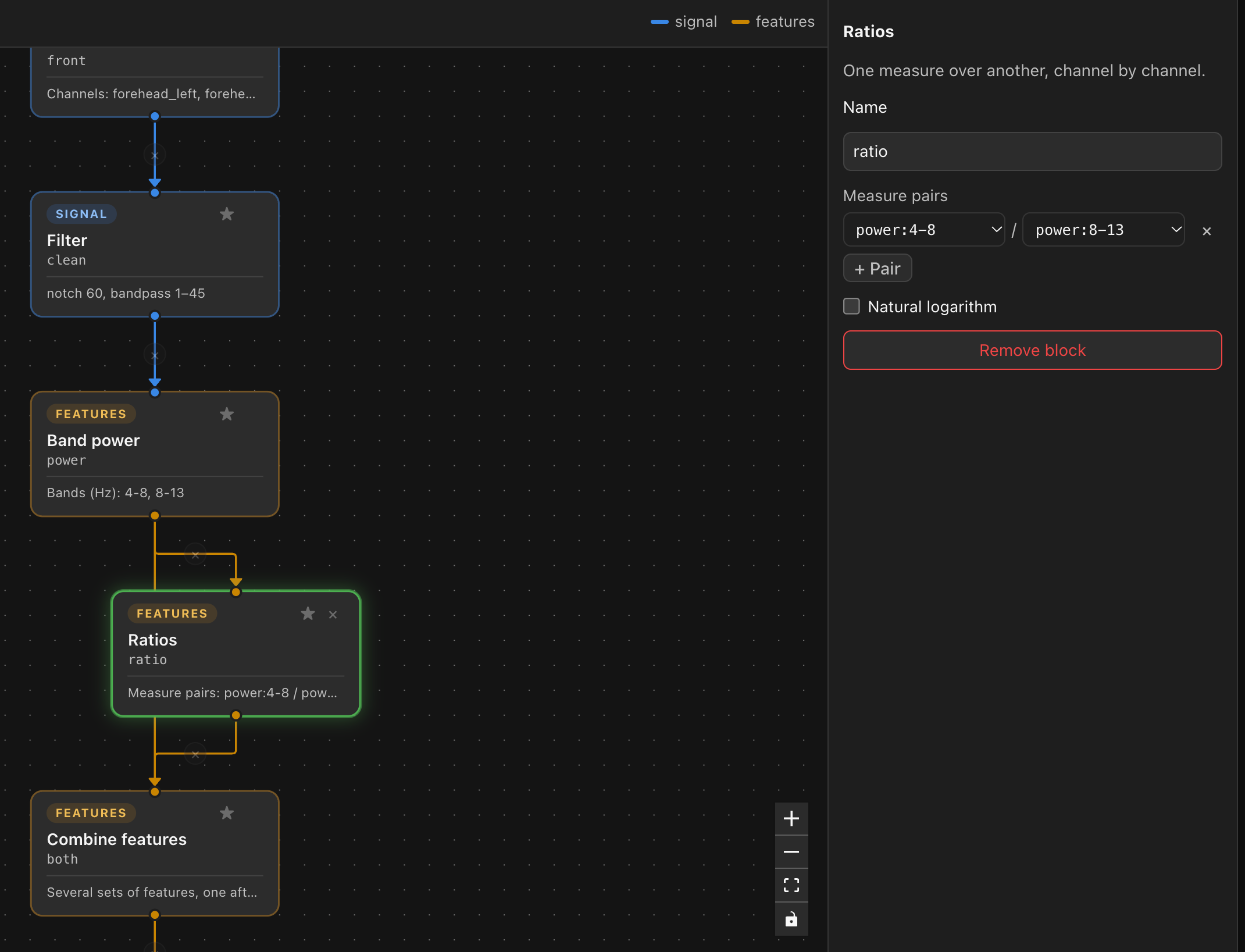
A block can feed several others, and Combine features or Ratios can bring branches back together, as in the Theta/alpha ratio recipe above.
Trying, Saving and Using
- Try on band runs the pipeline on the connected band and draws what it gives under the canvas. Nothing is published or recorded.
- Save keeps it on this computer.
- Use saves it and runs it with the band: it starts at once if the band is streaming, is published over LSL and drawn in the live view, and runs again at every connection (it is added to the band's configuration as
saved:<name>). - Export… saves it, then writes it as a folder (
config.json, a short model card, andmodel.safetensorsif it has trained numbers): the form openfrenz loads and Hugging Face hosts.
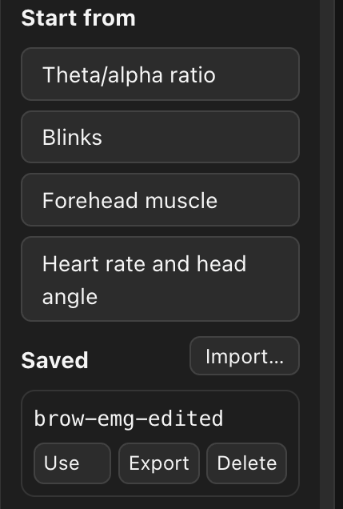
Each saved pipeline can be opened (click its name), Used, Exported or Deleted. Import… takes a pipeline's config.json (an export, or a model downloaded from Hugging Face); openfrenz checks it, and it is saved under its folder's name without replacing anything.
Changing a Built-in Signal
The built-in signals (eyes, brow muscle, heart, head, EEG power) are never changed by the editor. ✎ Pipeline on one of their charts opens an editable copy (for brow muscle, brow-emg-edited).
- Use on the copy runs it in place of the built-in: under its name, on its LSL stream and in its chart, so recordings and studies that expect that stream keep working. A recording already reading the stream carries on with the copy's values.
- The swap is kept in the band's configuration, so the copy runs in place of the built-in at every connection. The card lists it under Edited, and the chart is marked:

- ↺ Revert, on the chart or in the editor, puts the built-in back on the same stream. The copy stays in Saved until you delete it, ready to use again. Deleting the copy also reverts.
Models from Hugging Face
Pipelines can be shared on Hugging Face as model repositories. To run one with the band, add it to Hugging Face models in the configuration as owner/name (or owner/name@revision), separated by commas. It is downloaded once, kept for use offline, and runs alongside the built-in signals.
For a private model, enter a Hugging Face token: a read token from an account that has been invited to the model. A model that cannot be loaded is listed on the card with the reason, and the others run without it.
Troubleshooting
| Problem | What to do |
|---|---|
| The band is not found | Make sure it is on, charged, not connected to a phone or another program, and that the name matches the one printed on it |
| "The SDK helper is using the band" | Disconnect it, or switch Connection back to SDK helper |
| A signal is flat or noisy | Check Contact in the live view; wet the forehead pads and seat the side combs |
| Heart rate says "needs 30 s of pulse" | It needs half a minute of signal; keep still while it settles |
| A model is listed as not loaded | Read the reason on the card: a misspelled name, no access to a private model, or no network for a model not yet downloaded |