Prolific Integration
HyperStudy's Prolific integration allows you to seamlessly recruit research participants from the Prolific platform while leveraging HyperStudy's powerful experiment features. Prolific studies are configured at the deployment level, so each deployment can have its own Prolific study. This guide covers everything you need to know about setting up and managing Prolific studies.
Overview
The Prolific integration enables:
- Direct participant recruitment from Prolific's global participant pool
- Workspace and project management
- Advanced participant filtering and eligibility requirements
- Content warnings for sensitive studies
- Automatic participant authentication and entry
- Real-time recruitment monitoring
- Automated completion code handling (including NO_CONSENT for declined consent)
- Secure API key management per user
What's New
Recent Updates
- Workspace & Project Support: Organize studies within Prolific workspaces
- Content Warnings: Alert participants to sensitive or explicit content
- Simplified Consent: Unified consent system for all participants
- NO_CONSENT Code: Proper handling when participants decline consent
- Advanced Filters: Comprehensive participant eligibility requirements
- Per-User API Keys: Each researcher manages their own Prolific credentials
Setting Up Prolific Integration
Prerequisites
- An active Prolific researcher account
- A valid Prolific API key
- An experiment created in HyperStudy
- A deployment created for that experiment
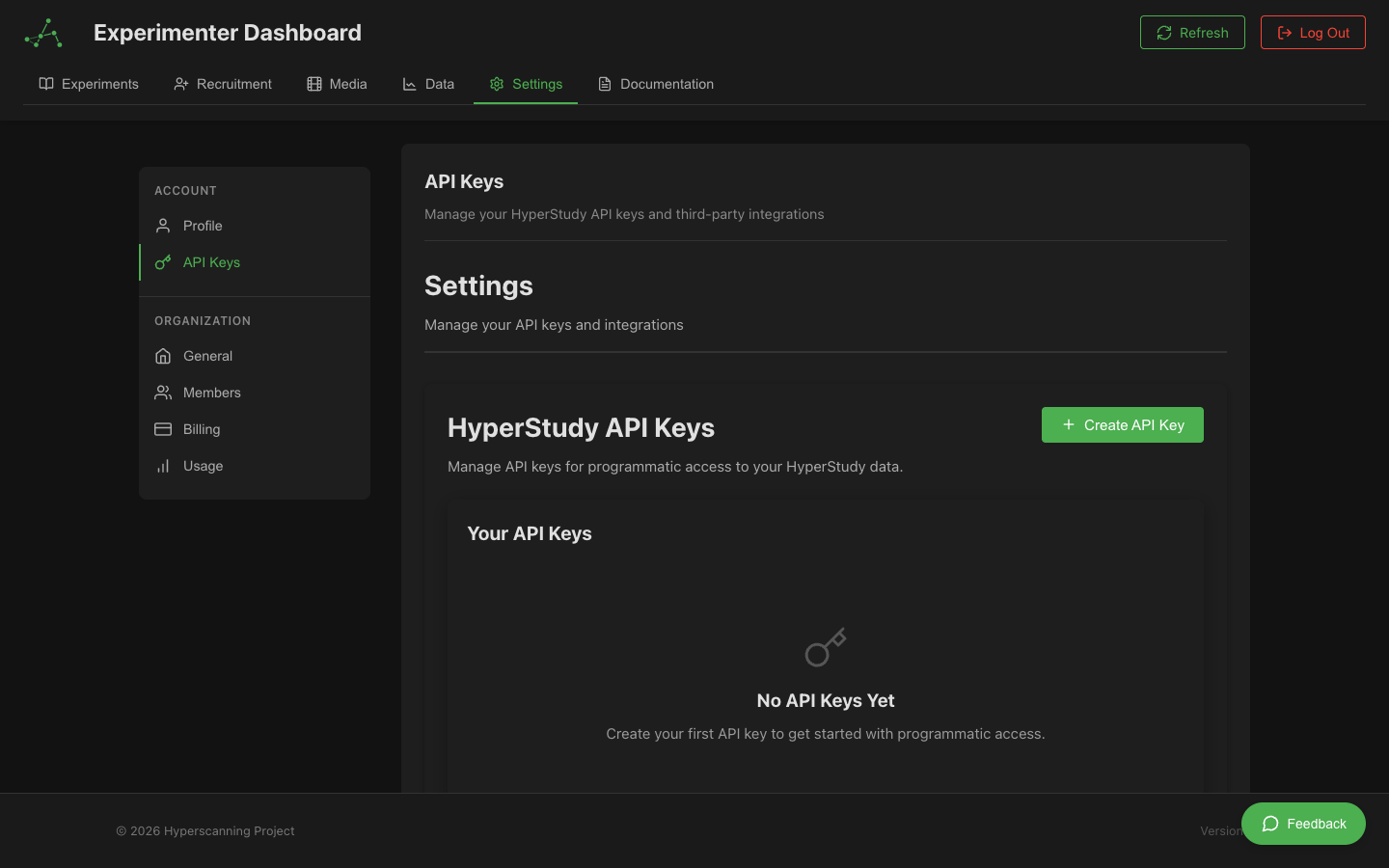
Step 1: Configure Your Prolific API Key
- In HyperStudy, go to User Settings (click your profile icon)
- Navigate to API Keys
- Click Add Prolific API Key
- Enter your Prolific API key
- Click Save
Your API key is encrypted and stored securely. You only need to do this once.
Step 2: Enable Prolific for Your Deployment
- Navigate to the Deployments page
- Open the deployment you want to configure (or create a new one)
- Click on the Prolific section within the deployment
- You'll see the Prolific configuration interface
Configuring Your Prolific Study
Basic Configuration
Study Details
- Study Name: How your study appears to participants on Prolific
- Internal Name: Your reference name (not shown to participants)
- Description: Brief description of your study for participants
- Estimated Completion Time: How long the study takes (in minutes)
- Reward: Payment per participant (minimum $1.25 USD)
- Total Available Places: Number of participants to recruit
Workspace and Project
- Click Select Workspace/Project
- Choose your Prolific workspace from the dropdown
- Select or create a project within that workspace
- Click Save Selection
This helps organize your studies on Prolific's platform.
Content Warnings
If your study contains potentially distressing content:
-
In the Content Warnings section, select:
- Sensitive Content: For studies involving trauma, violence, or distressing topics
- Explicit Content: For studies with graphic language or sexual content
-
Add Content Warning Details (optional):
This study includes questions about traumatic experiences
that some participants may find distressing.
Content warnings help participants make informed decisions about participation.
Device and Technical Requirements
Device Compatibility
Select which devices can access your study:
- Desktop/Laptop
- Tablet
- Mobile Phone
Peripheral Requirements
Specify required equipment:
- Audio/Speakers
- Camera
- Microphone
- Download Software
Completion Code Settings
Choose what happens when participants submit completion codes:
- Automatically Approve: Instant payment upon completion
- Manually Review: Review submissions before payment
Participant Eligibility Filters
Click Participant Filters to set eligibility requirements:
Available Filter Categories
- Demographics: Age, gender, country, language
- Participant History: Approval rate, previous studies
- Work & Education: Employment status, student status
- Technology: Device type, internet connection
- Health & Lifestyle: Various screening criteria
Adding Filters
- Click + Add Filter
- Search or browse for criteria
- Configure the filter (e.g., age range 18-65)
- Click Add
Example filters:
Age: 18-65 years
Country: United States, United Kingdom
Approval Rate: > 95%
Primary Language: English
Creating and Managing Studies
Creating a Study on Prolific
- Configure all settings as described above
- Click Save Configuration
- Click Create Study on Prolific
- Your study will be created in DRAFT status
Study Lifecycle
Draft → Active
- Review your configuration
- Click Publish Study
- Participants can now join
Active → Paused
- Click Pause to temporarily stop recruitment
- Existing participants can complete
- Click Resume to continue recruitment
Active → Stopped
- Click Stop to end recruitment
- No new participants can join
- Study is finalized on Prolific
Updating Studies
For Draft Studies
All settings can be modified:
- Make your changes
- Click Update Configuration
For Published Studies
Limited updates allowed:
- Internal name
- Total available places
- Some filters (restrictions apply)
Consent Form Integration
How Consent Works
HyperStudy's consent system now works seamlessly with Prolific:
- Enable Consent: In the Consent tab, toggle "Enable consent form"
- Configure Content: Add your consent form text (supports Markdown)
- Automatic Flow:
- Participants see consent BEFORE entering waiting room
- Must agree to proceed
- If declined, receive NO_CONSENT code and return to Prolific
Consent Configuration
# Consent Form Title

## Study Information
This research study examines...

## What will you do?
You will be asked to...

## Risks and Benefits
[Describe any risks and benefits]

## Confidentiality
Your data will be...

## Voluntary Participation
You may withdraw at any time...
Consent and Prolific
When a Prolific participant declines consent:
- They receive a NO_CONSENT completion code
- They're redirected back to Prolific
- Their submission is automatically rejected
- They receive no payment (only spent time reading consent)
- The slot becomes available for another participant
Participant Flow
For Prolific Participants
- Click study link on Prolific → Redirected to HyperStudy via the deployment URL
- Authentication → Automatic using Prolific token
- Consent (if enabled) → Must agree to proceed
- Waiting Room → Matched with other participants
- Experiment → Complete the study
- Completion → Receive code and return to Prolific
- Data → Session data is recorded under the deployment for tracking and export
Completion Codes
Different codes for different outcomes:
- SUCCESS: Normal completion
- TIMEOUT: Exceeded time limit
- TECHNICAL: Technical issues
- NO_CONSENT: Declined consent (no payment)
Monitoring and Management
Real-Time Monitoring
The Prolific Monitor shows:
- Study status and controls
- Recruitment progress
- Active participants
- Completion statistics
- Individual participant details
Participant Details
View for each participant:
- Prolific ID
- Status (active, completed, failed)
- Start/end times
- Performance metrics
- Completion code issued
Managing Submissions
Access the Submissions tab to:
- View all participant submissions
- See completion codes used
- Check submission times
- Handle edge cases
Best Practices
Study Setup
- Test First: Run a small pilot (n=2-5) before full recruitment
- Clear Descriptions: Be specific about what participants will do
- Accurate Time Estimates: Overestimate rather than underestimate
- Fair Payment: Follow Prolific's payment guidelines
Content Warnings
- Use content warnings for any potentially distressing material
- Be specific in warning details
- Consider your participant pool's sensitivities
Consent Forms
- Keep consent forms concise but complete
- Include all IRB-required elements
- Use clear, accessible language
- Test consent flow before launching
Device Requirements
- Only require devices actually needed
- Consider mobile compatibility for wider reach
- Test on all allowed devices
Filters and Eligibility
- Don't over-filter (reduces available participants)
- Use Prolific's built-in demographics when possible
- Save complex screening for within the study
Troubleshooting
Common Issues
"Workspace not found"
- Ensure your API key has access to the workspace
- Try refreshing the workspace list
- Check Prolific directly for workspace access
Participants can't access study
- Verify study is published on Prolific
- Check experiment is active in HyperStudy
- Ensure no conflicting filters
- Review device compatibility settings
Completion codes not working
- Verify study status on Prolific
- Check automatic approval settings
- Review participant's actual completion status
- Look for technical errors in browser console
Filter validation errors
- Some filters have specific requirements
- Age ranges must be valid (min < max)
- Some filters conflict with others
- Review Prolific's filter documentation
Getting Help
For integration issues:
- Check browser console for errors
- Review the Prolific API response
- Contact HyperStudy support with:
- Experiment ID
- Error messages
- Steps to reproduce
Security and Privacy
API Key Security
- Each researcher uses their own API key
- Keys are encrypted at rest
- Never share API keys
- Rotate keys periodically
Participant Privacy
- No personal data stored in HyperStudy
- Only Prolific IDs used for identification
- Secure token-based authentication
- All communications encrypted
Data Protection
- Compliant with GDPR and data protection laws
- Participants can withdraw at any time
- Data deletion available on request
Advanced Features
Multi-Session Studies
- Create multiple linked experiments
- Use Prolific's allowlist feature
- Track participants across sessions
A/B Testing
- Create multiple experiment versions
- Use URL parameters for assignment
- Track metrics by condition
Bonus Payments
- Currently manual through Prolific's interface
- Track performance in HyperStudy
- Process bonuses based on your criteria
API Limits and Quotas
Be aware of Prolific's API limits:
- Study creation: Limited per day
- Updates: Rate limited
- Participant queries: Cached for performance
Support Resources
Documentation
Community
- Prolific Researcher Slack
- HyperStudy Forums
- Research Methods Communities
Contact
- HyperStudy Support: support@hyperstudy.io
- Prolific Support: Through their platform
Related Documentation
- Deployments - Managing deployment lifecycle and data collection
- Recruitment Settings - Overview of all recruitment methods